
Use Your Wedding Checklist
Stay on track with an AI-generated checklist of 100+ tasks organized by timeline and category.
Last updated February 21, 2026
Your wedding checklist is your master to-do list. Harusi Hub generates over 100 tasks tailored to your wedding date and type, then organizes them by timeline so you always know what to focus on next.
Getting Started with Your Checklist
To access your checklist, go to Dashboard > Checklist from the sidebar navigation.
If this is your first time visiting, you’ll see a “Get Started with Your Checklist” button. Click it to generate your personalized checklist. The system uses your wedding date and wedding type to create a complete task list with appropriate deadlines.
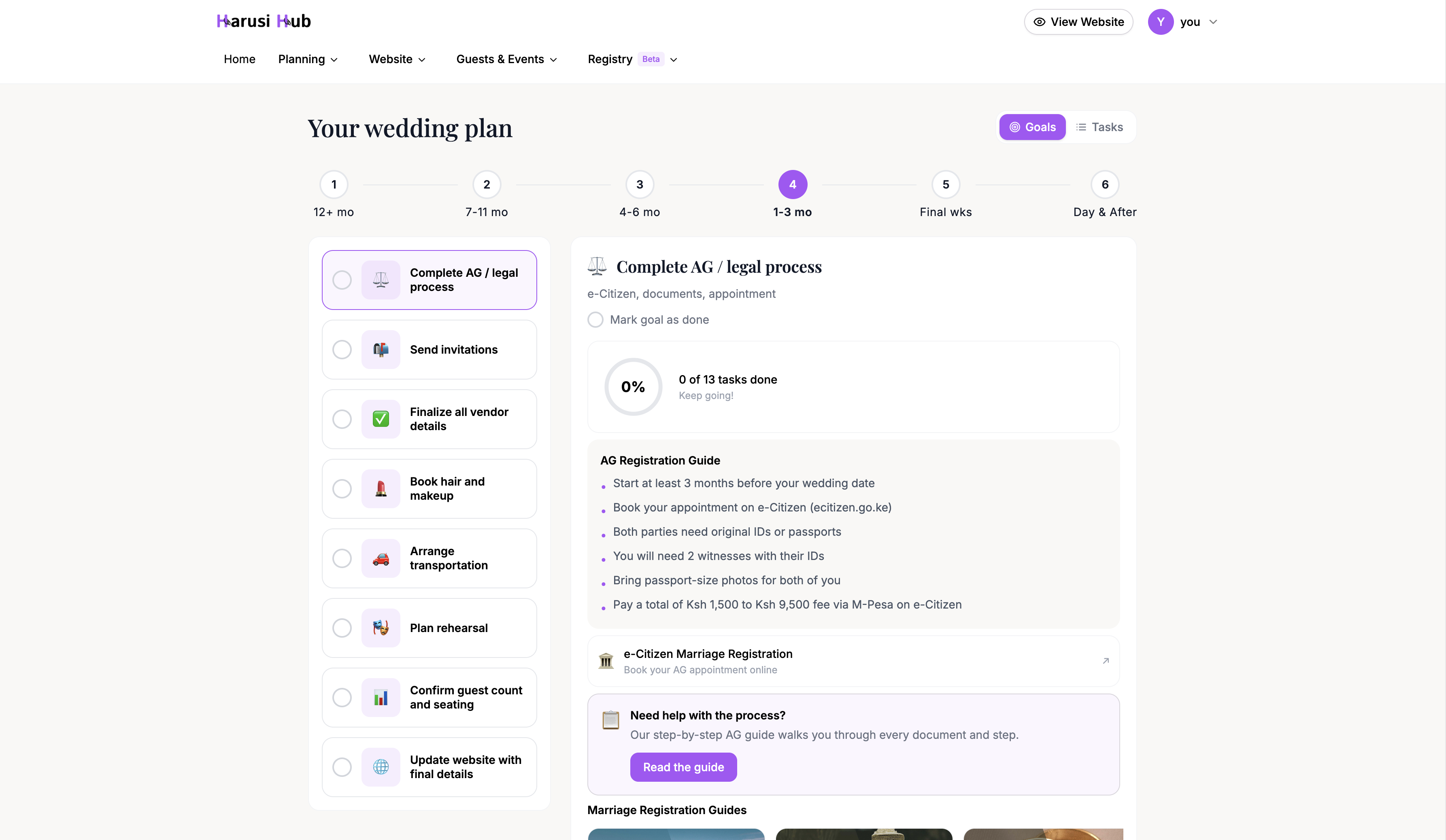
Once generated, your checklist includes tasks across 15 categories:
- Legal & Registration
- Traditional Ceremonies
- Venue
- Vendors
- Attire
- Food & Drink
- Flowers & Decor
- Guests
- Invitations
- Wedding Website
- Registry
- Beauty
- Music & Entertainment
- Travel & Accommodation
- Details & Planning
Viewing Your Checklist
At the top of the checklist page, you can toggle between two view modes: List View and Goals View.
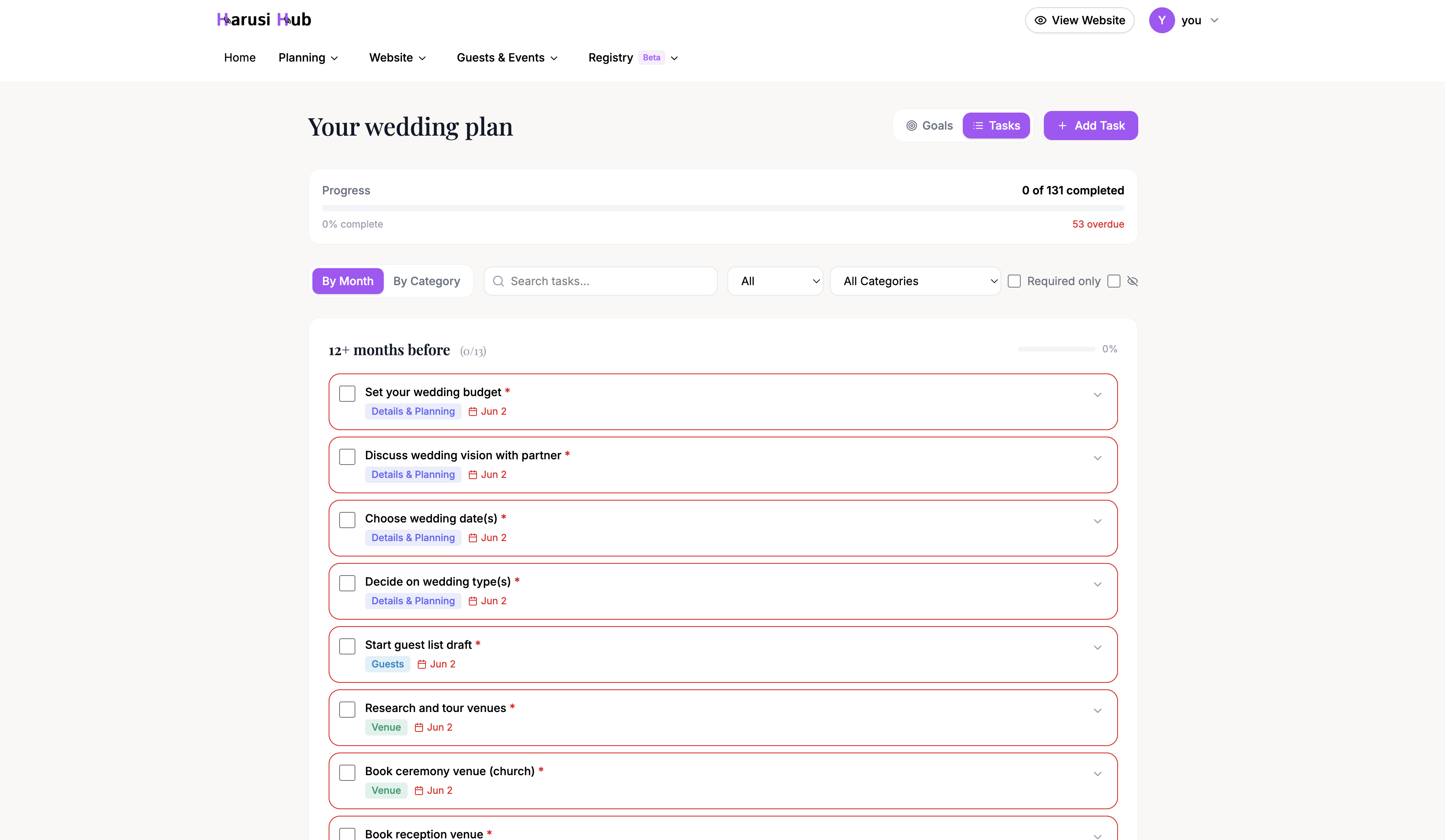
List View by Month
The default List View groups your tasks into 11 time periods, from “12+ months before your wedding” all the way through to “After the wedding.” This lets you see exactly what needs to happen and when.
Each time period shows its tasks with checkboxes, due dates, and category labels. Tasks with past due dates appear in red so you can quickly spot what needs attention.
List View by Category
You can also switch to view tasks grouped by category. Each category displays a progress bar showing how many tasks you’ve completed out of the total. This view is useful when you want to focus on one area of planning at a time.
Working with Tasks
Click on any task to expand it and see its full details:
- Description — explains what the task involves
- Tips — actionable advice to help you complete the task
- Goal link — which planning goal this task belongs to
- Notes — a text area where you can add your own notes
- Due date — when the task should be completed by (shown in red if overdue)
To mark a task as done, click the checkbox next to the task title. Your progress stats at the top of the page update immediately.
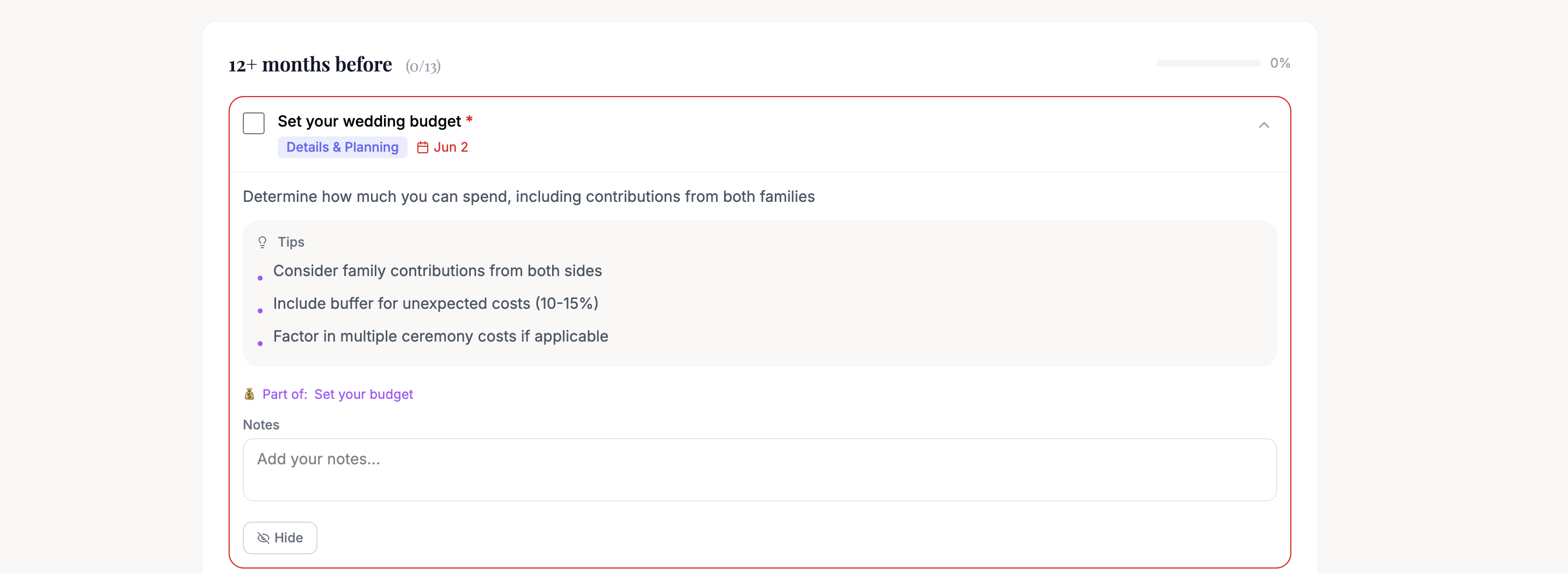
You can also hide tasks that aren’t relevant to your wedding, or delete custom tasks you’ve added.
Adding Custom Tasks
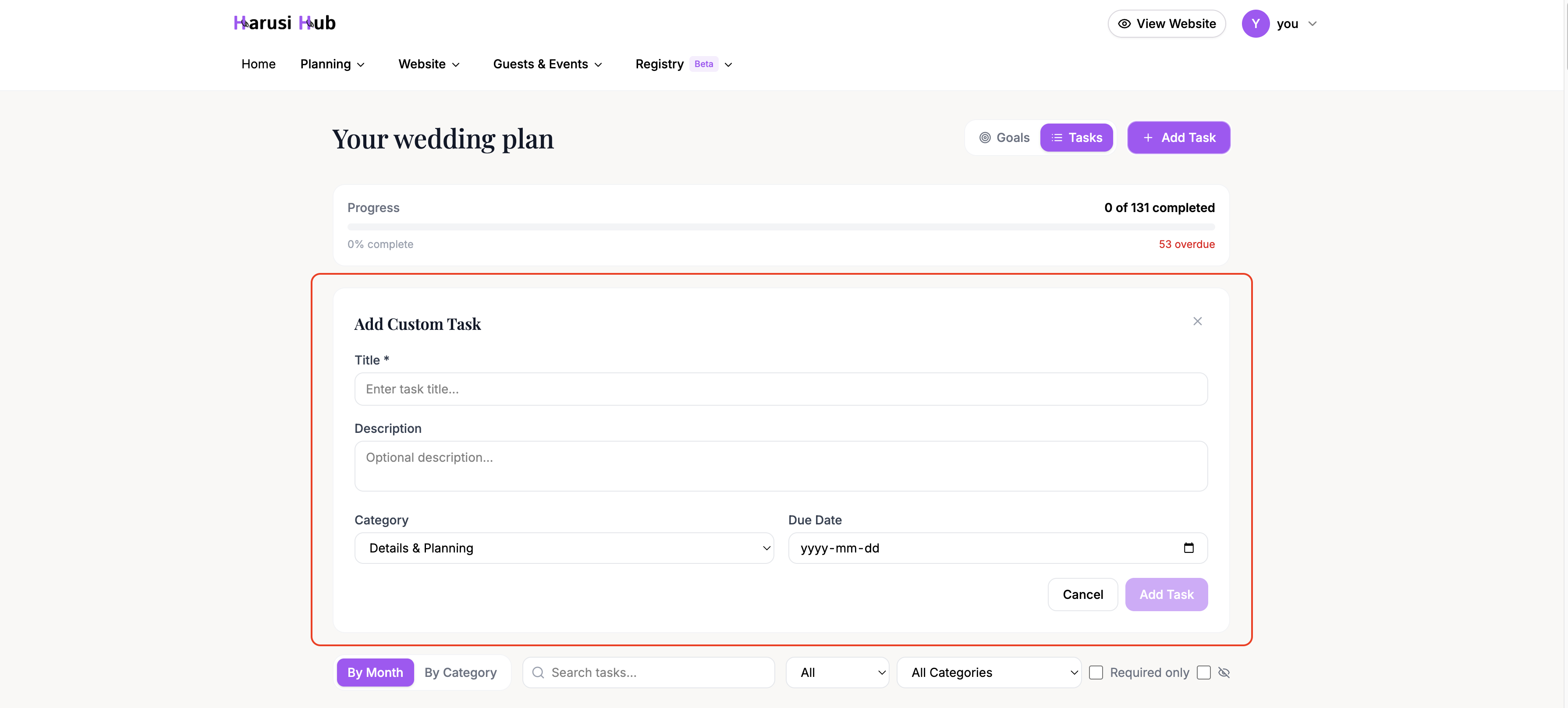
Your generated checklist covers the essentials, but every wedding is different. To add your own tasks, click the Add Task button. You can set:
- Task title
- Category
- Due date
Custom tasks work exactly like generated ones — you can expand them, add notes, and check them off.
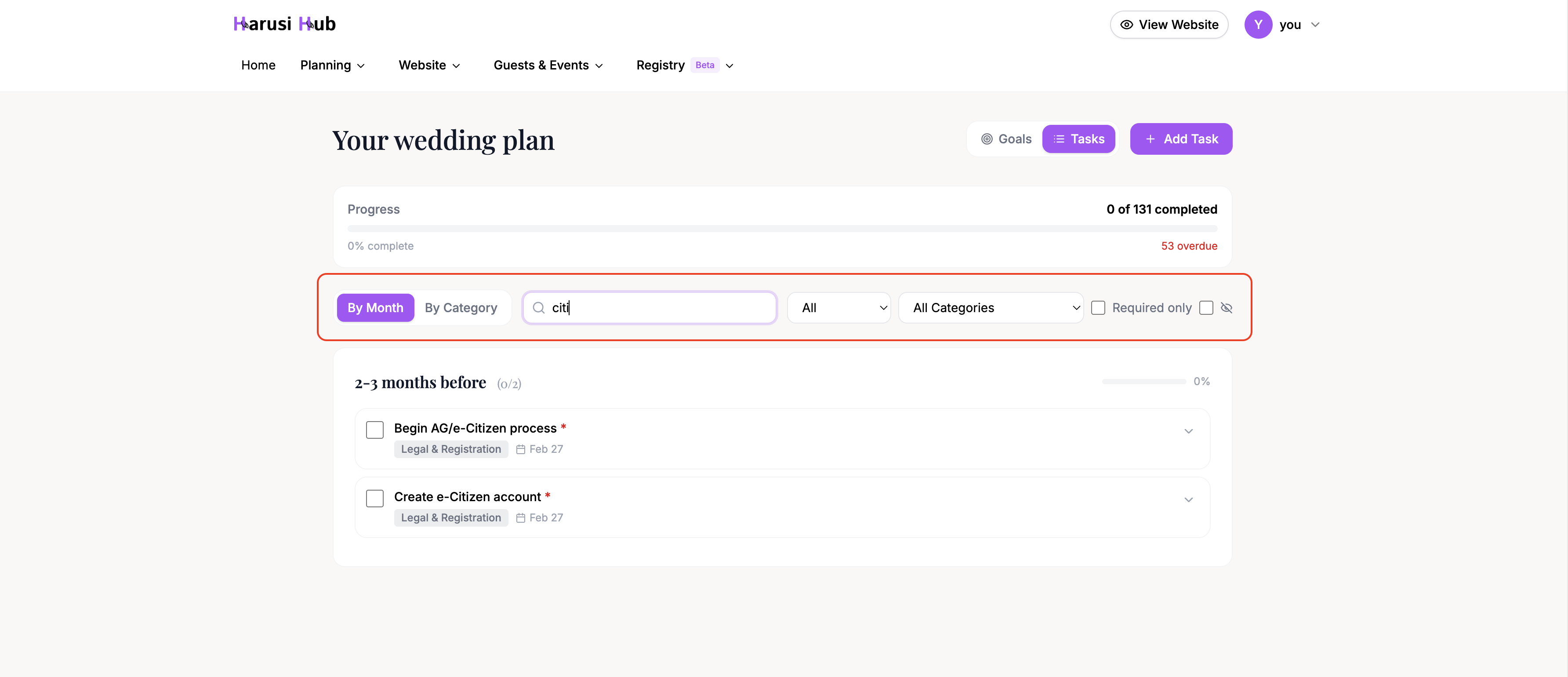
Filtering and Searching
The checklist includes powerful filtering options to help you focus on what matters:
- Status — show all tasks, only pending, only completed, or only overdue
- Category — filter to a specific category like Venue or Attire
- Required only — show only essential tasks
- Show hidden — reveal tasks you’ve previously hidden
You can also use the search bar to find tasks by title. This is helpful when you’re looking for something specific across your entire checklist.
Tracking Your Progress
At the top of the checklist page, you’ll see your overall progress stats:
- Completed count — how many tasks you’ve finished
- Percentage complete — your overall progress as a percentage
- Overdue count — how many tasks are past their due date
These numbers update in real time as you check off tasks, giving you a clear picture of where you stand in your planning journey.