
Set Up Your Wedding Budget
Create your wedding budget with the setup wizard, understand your summary cards, and manage budgets across multiple events.
Last updated February 21, 2026
Getting started
To set up your wedding budget, head to Dashboard > Budget from the left sidebar. If you haven’t created a budget yet, you’ll see an empty state page with a Get Started button.
Click Get Started to launch the budget setup wizard.
The setup wizard
The setup wizard walks you through three quick steps to get your budget ready.
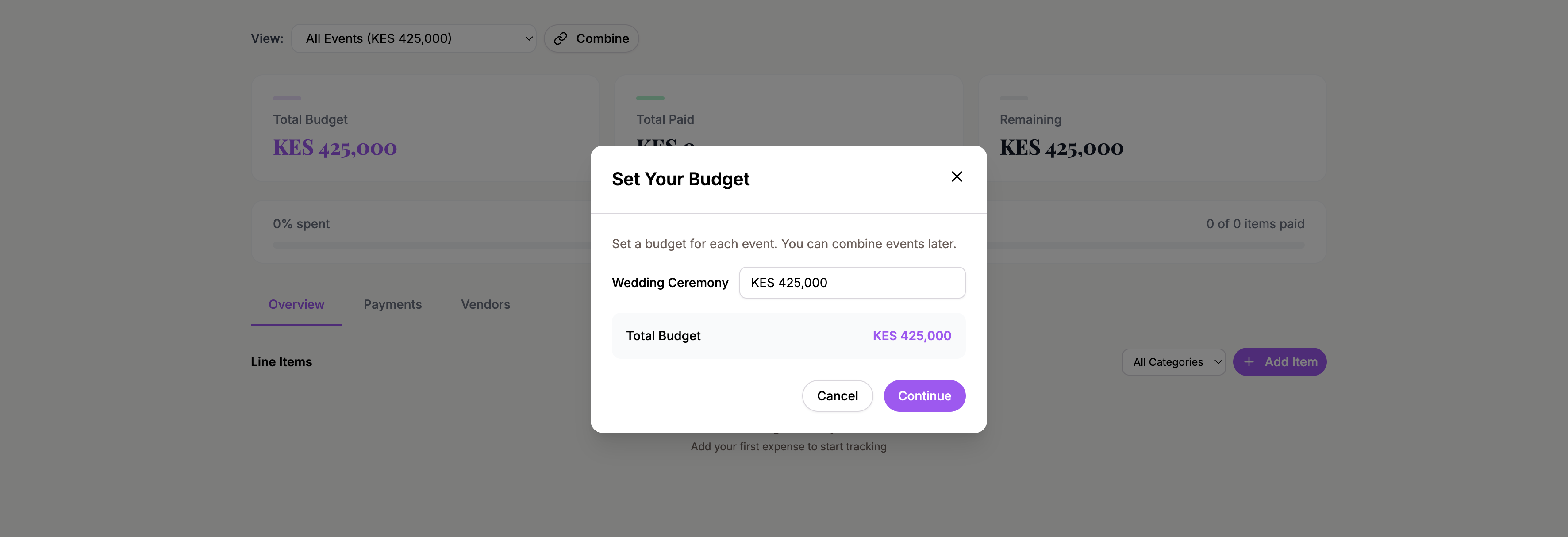
Step 1: Set your budget amount
Enter the total amount you plan to spend on your wedding. If you have multiple events (for example, a ceremony and a reception), you’ll set a separate budget for each event.
For single-event weddings, just enter one total amount and move on.
Step 2: Choose a starter template (optional)
You can pick from a pre-built starter template that comes with common wedding expense categories already filled in. This gives you a head start so you don’t have to add every item from scratch.
If you’d rather start with a blank slate, skip this step.
Step 3: You’re all set
The final step confirms your budget is ready. You’ll see suggested next steps like adding your first line items or exploring the category breakdown.
Understanding your budget summary
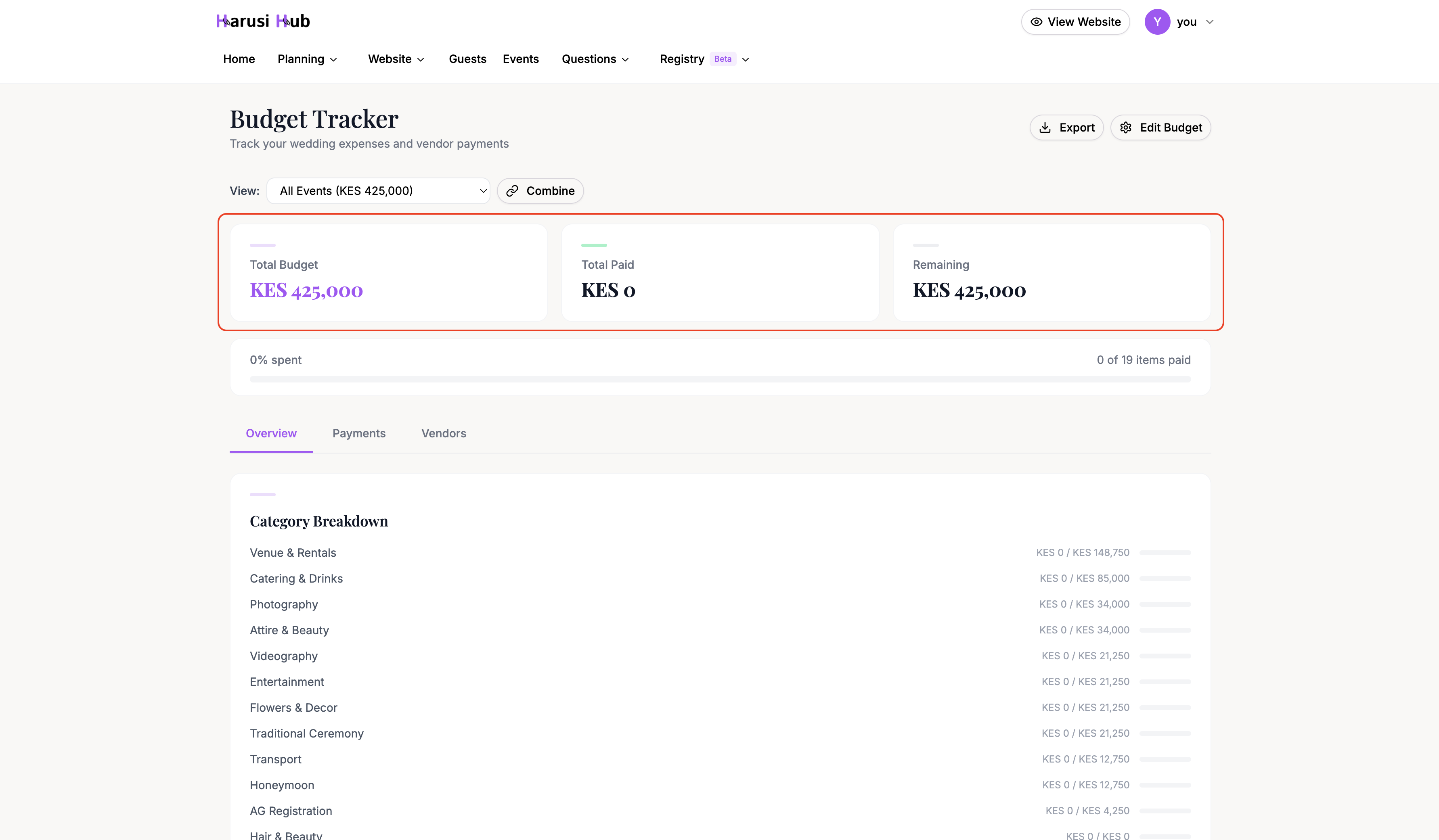
Once your budget is set up, the top of the Budget page shows three summary cards:
- Total Budget — the amount you set during setup
- Total Paid — the sum of all payments you’ve recorded so far
- Remaining — how much is left to pay
Below the cards, a progress bar shows the percentage of your budget that’s been spent, along with a count of how many items have been fully paid.
Switching budget context
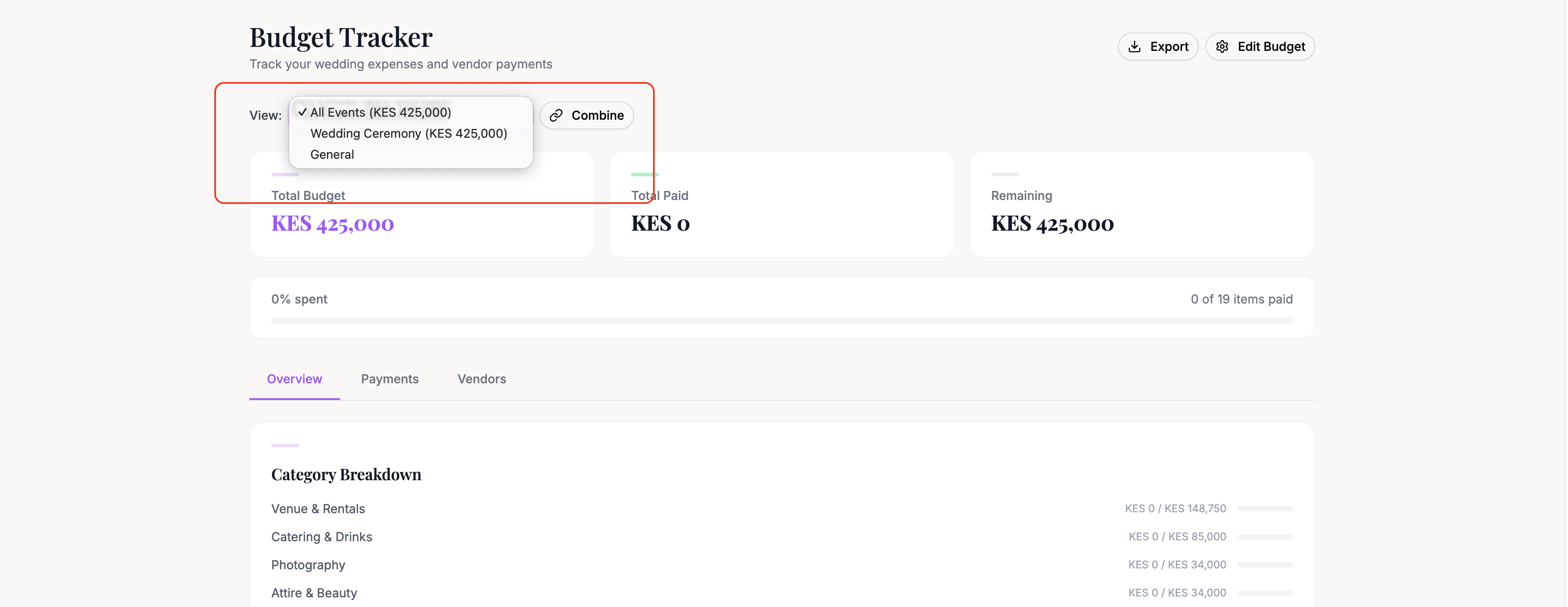
If you have multiple events or budget groups, use the budget context selector at the top of the page to filter your view. You can switch between:
- All Events — see combined totals across everything
- Individual events — focus on one event at a time (e.g., just the reception)
- Budget groups — view grouped events together
- General — expenses not tied to a specific event
Over-budget alerts
If your estimated expenses exceed your total budget, a red alert banner appears at the top of the page. This helps you catch overspending early so you can adjust your plans before costs get out of hand.
Editing your budget amount
You can change your total budget amount at any time. Go to the budget settings to update the amount for any event. Your summary cards and progress bar will recalculate automatically.
Tips for getting started
- Use a starter template if you’re not sure what categories to include. You can always remove items you don’t need.
- Set realistic estimates for each line item. It’s better to overestimate slightly than to be surprised later.
- Check your budget context if the numbers look off. You might be viewing a single event when you meant to see the full picture.