
Track Contributions
Verify, reject, and export guest contributions to your wedding gift registry.
Last updated February 21, 2026
Getting started
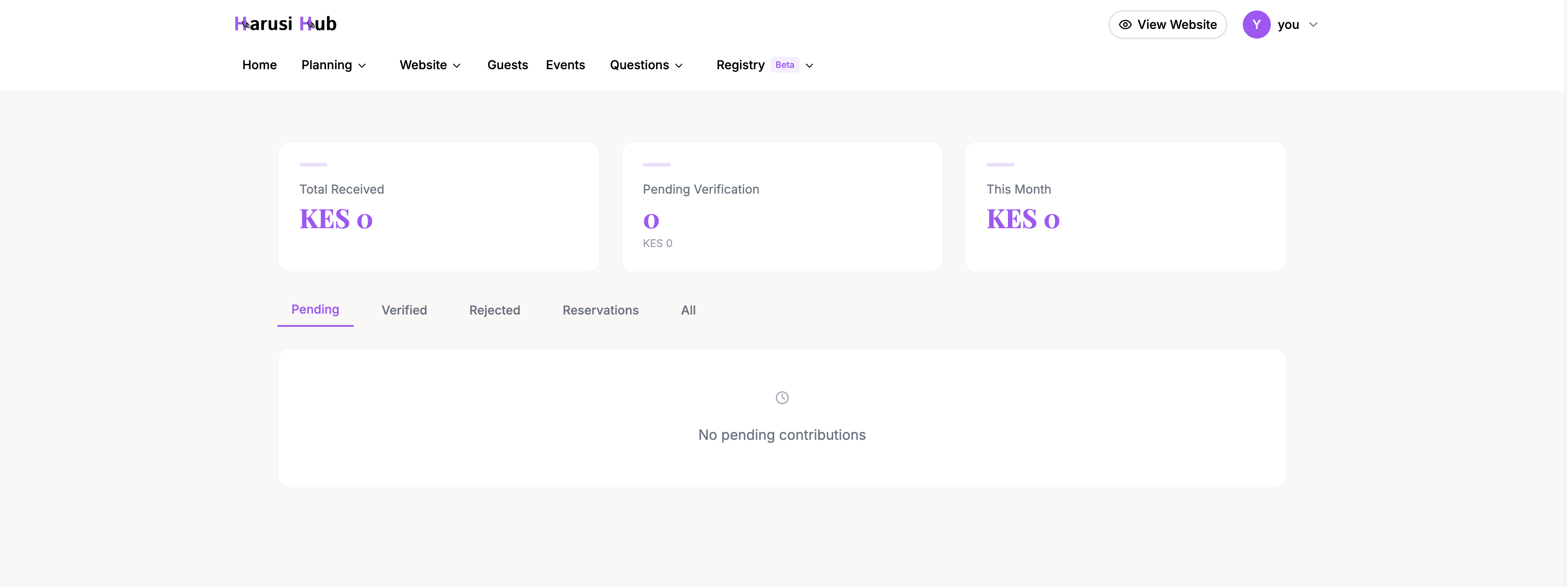
To manage contributions, go to Dashboard > Registry > Contributions. This page shows every contribution guests have made to your registry products and funds.
Contribution metrics
At the top of the page you’ll see summary cards with key numbers:
- Total Received — the total amount from verified contributions.
- Pending Verification — the count and total amount of contributions waiting for your review.
- This Month — contributions received in the current month.
Viewing contributions by status
Contributions are organized into tabs so you can quickly find what you need:
- Pending — new contributions waiting for verification.
- Verified — contributions you’ve approved.
- Rejected — contributions you’ve declined.
- Reserved — products a guest has reserved to buy themselves.
- All — every contribution regardless of status.
Each contribution card shows the contributor name and phone number, amount, item or fund name, status, M-Pesa reference, message (if the guest left one), and date.
Verifying contributions
When a guest contributes, their entry appears in the Pending tab. To verify it:
- Click on the contribution to open the detail view.
- Confirm that the M-Pesa reference matches a real payment you’ve received.
- Click Verify to approve it.
- Optionally add a note for your own records.
Once verified, the contribution counts toward the product or fund’s progress and appears in your Total Received metric.
Rejecting contributions
If a contribution doesn’t match a real payment or looks incorrect:
- Click on the contribution.
- Click Reject.
- Enter a rejection reason so you have a record of why it was declined.
Rejected contributions move to the Rejected tab and do not count toward item progress.
M-Pesa reference validation
Harusi Hub validates M-Pesa references to help catch errors:
- References must be 10 alphanumeric characters (the standard M-Pesa format).
- Duplicate references are flagged automatically — if someone submits the same reference twice, you’ll see a warning so you can avoid double-counting.
How guests contribute
From the guest’s side, the contribution flow is straightforward:
- Guest visits your registry and picks an item or fund.
- Guest enters their name, phone number, and contribution amount.
- Guest makes the M-Pesa payment separately.
- Guest enters their M-Pesa reference and an optional message.
- The contribution appears in your Pending tab for verification.
Exporting contributions
To download a record of your contributions, click the Export CSV button at the top of the Contributions page. The export includes all verified contributions with the following columns:
- Contributor name
- Phone number
- Amount
- Item or fund name
- Date
- Message
- M-Pesa reference
This is useful for thank-you notes, financial records, or sharing with family.

Next steps
- Set Up Your Gift Registry — overview of your registry hub and settings.
- Add Products to Your Registry — add catalog or custom products.