Manage Your RSVP Questions
Create custom RSVP questions, assign them to events, reorder them, and view guest responses.
Last updated February 21, 2026
Accessing your RSVP questions
To manage RSVP questions, go to Dashboard > Questions. This is where you create and organize all the questions your guests will see when they RSVP.
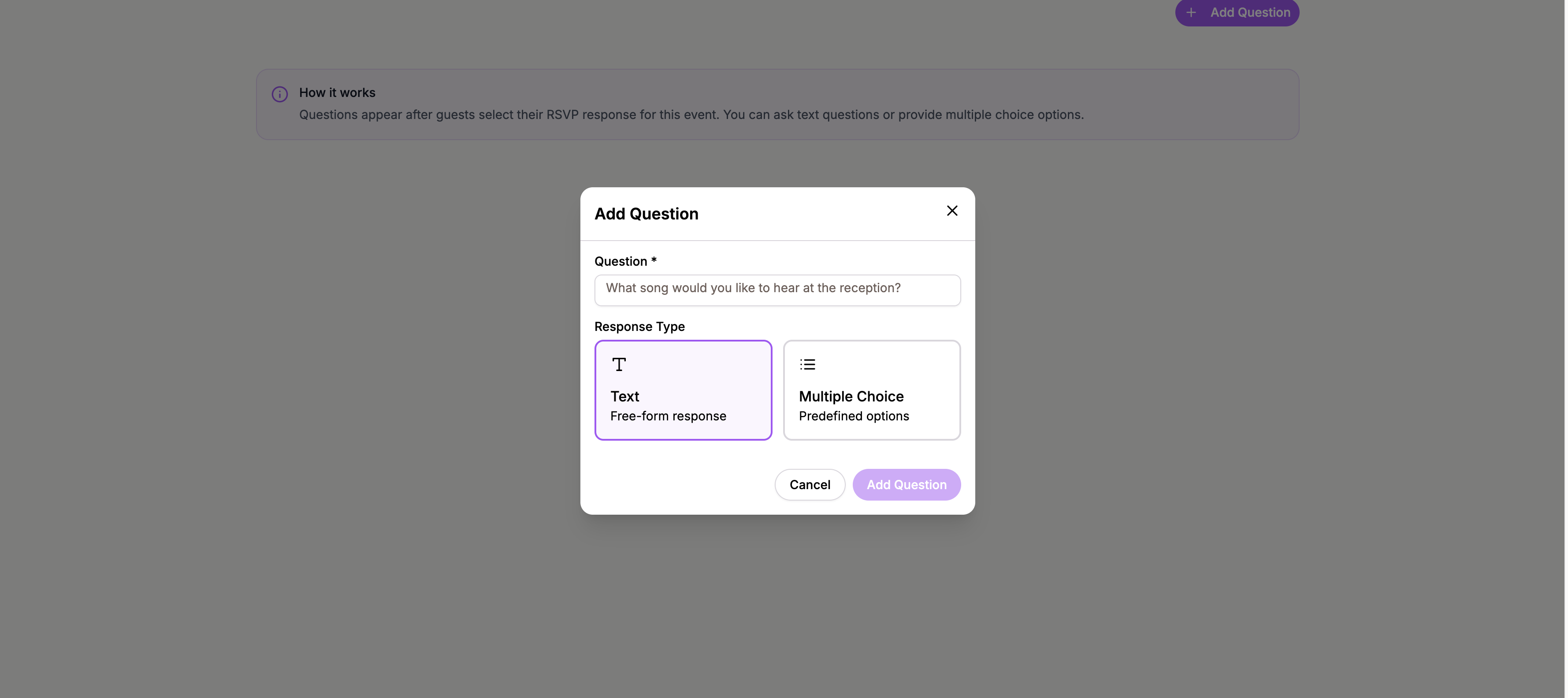
Creating questions
Click the Add Question button to create a new question. You can choose between two question types:
- Text — guests type a free-form answer (e.g., “Do you have any dietary restrictions?”)
- Multiple choice — guests select from predefined options (e.g., “Which meal do you prefer?”)
For multiple-choice questions, add as many options as you need.
Assigning questions to events
If you have multiple events (e.g., a ceremony, reception, and after-party), use the event dropdown at the top of the questions page to select which event a set of questions applies to.
This lets you ask different questions for different events. For example, meal preferences might only be relevant for the reception.
Reordering questions
Drag and drop questions using the drag handles on the left side of each question row to change the order. The order you set here is the order guests will see them in the RSVP form.
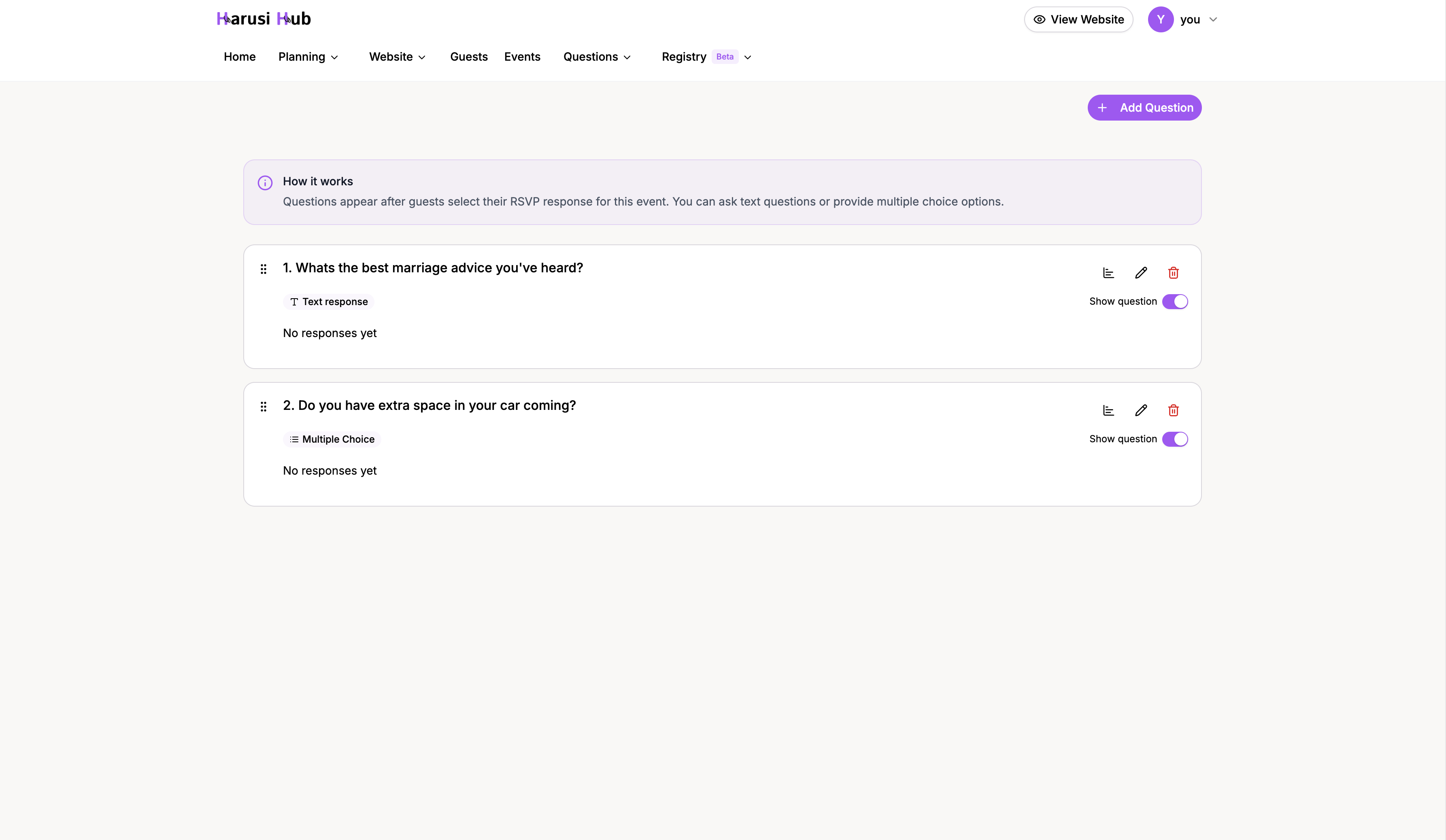
Enabling and disabling questions
Each question has a toggle to enable or disable it. Disabled questions are hidden from your RSVP form but are not deleted, so you can re-enable them at any time.
This is useful if you want to prepare questions in advance and activate them closer to the event.
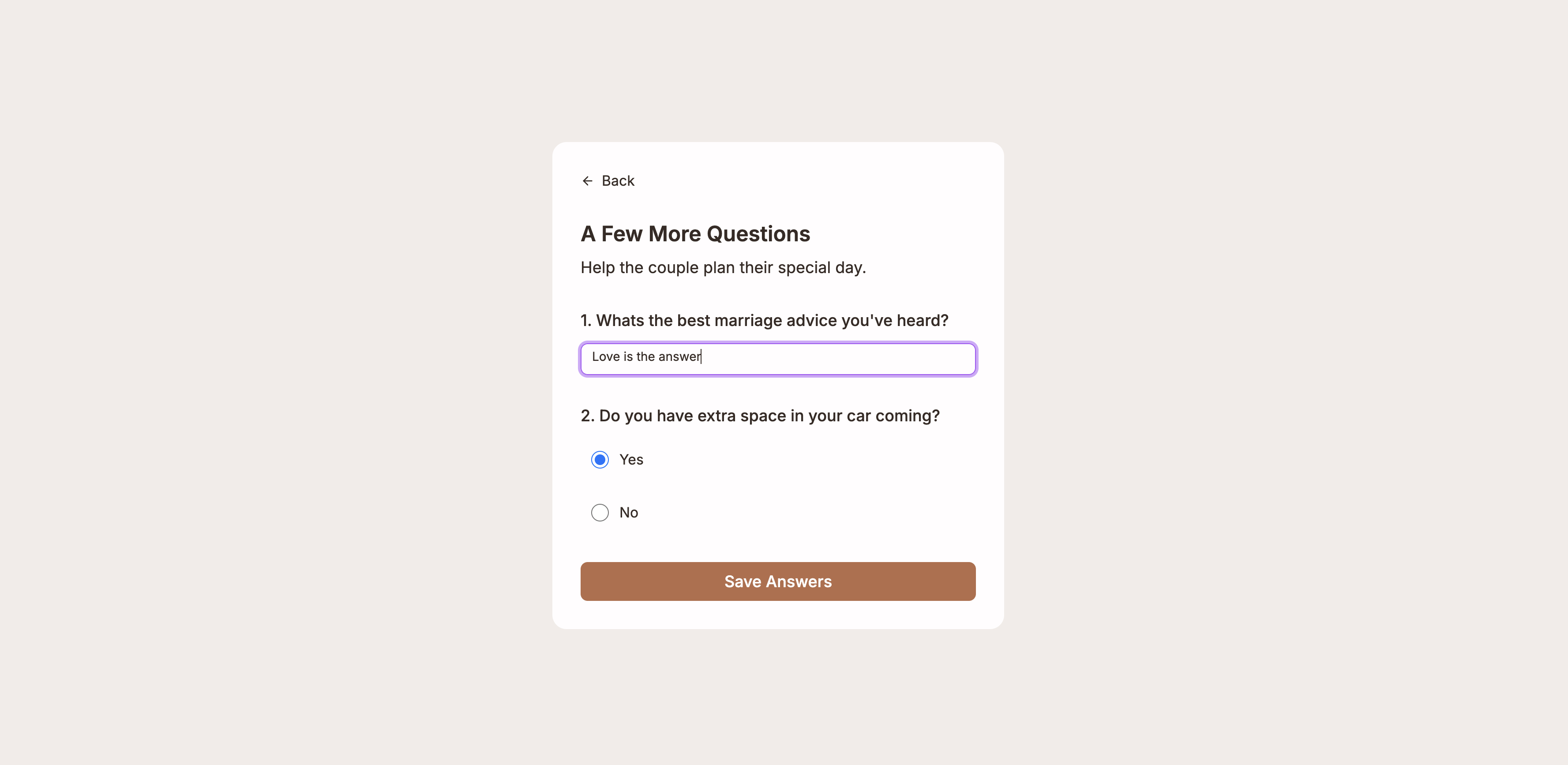
How it looks like for guests when rsvp-ing
When guest are going through the rsvp steps the questions will appear before they can confirm their attendance. the questions are options.
Viewing response analytics
Once guests start responding, each question shows a quick summary:
- Recent answers — a preview of the 5 most recent responses
- Total count — the total number of responses received
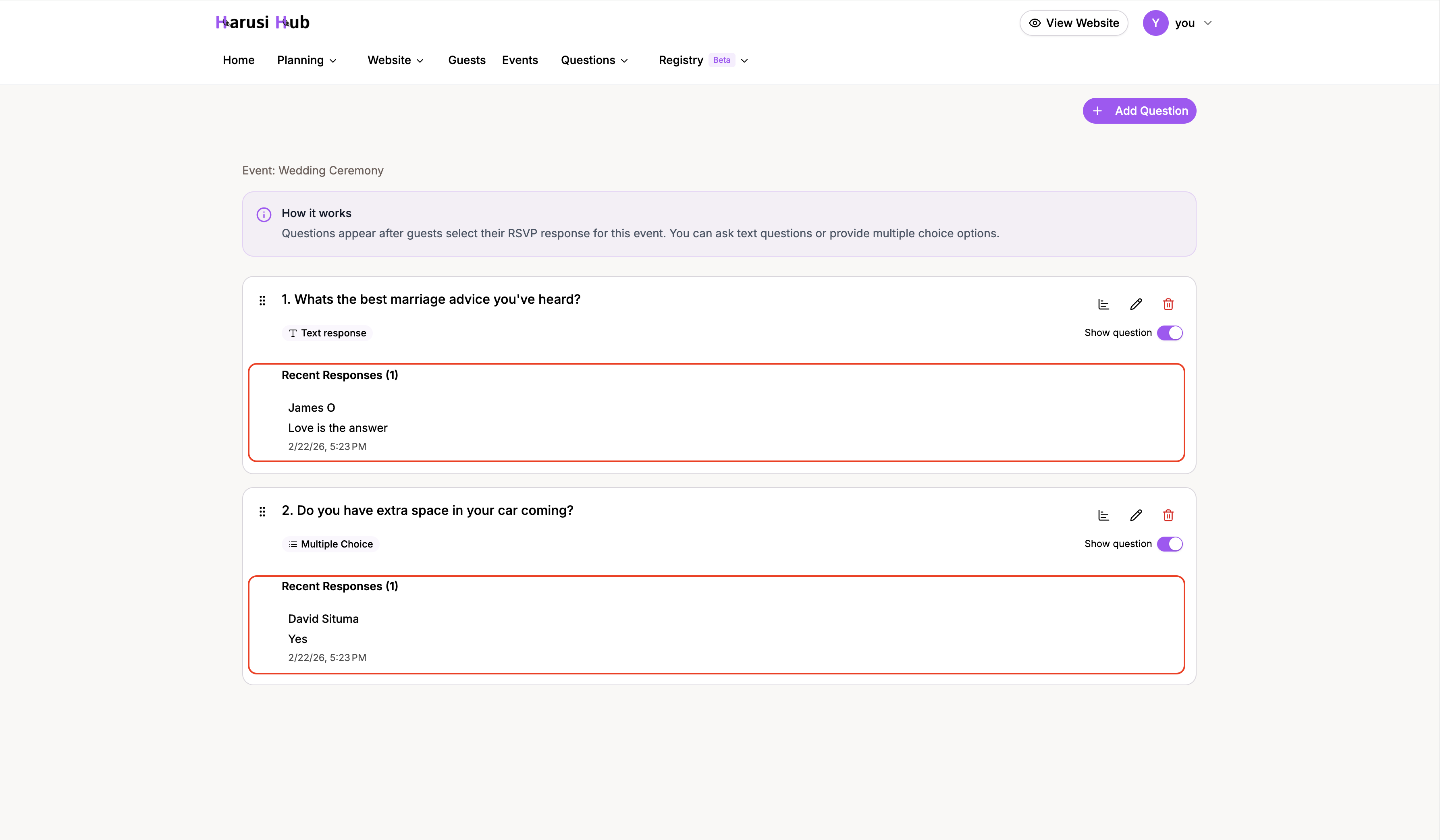
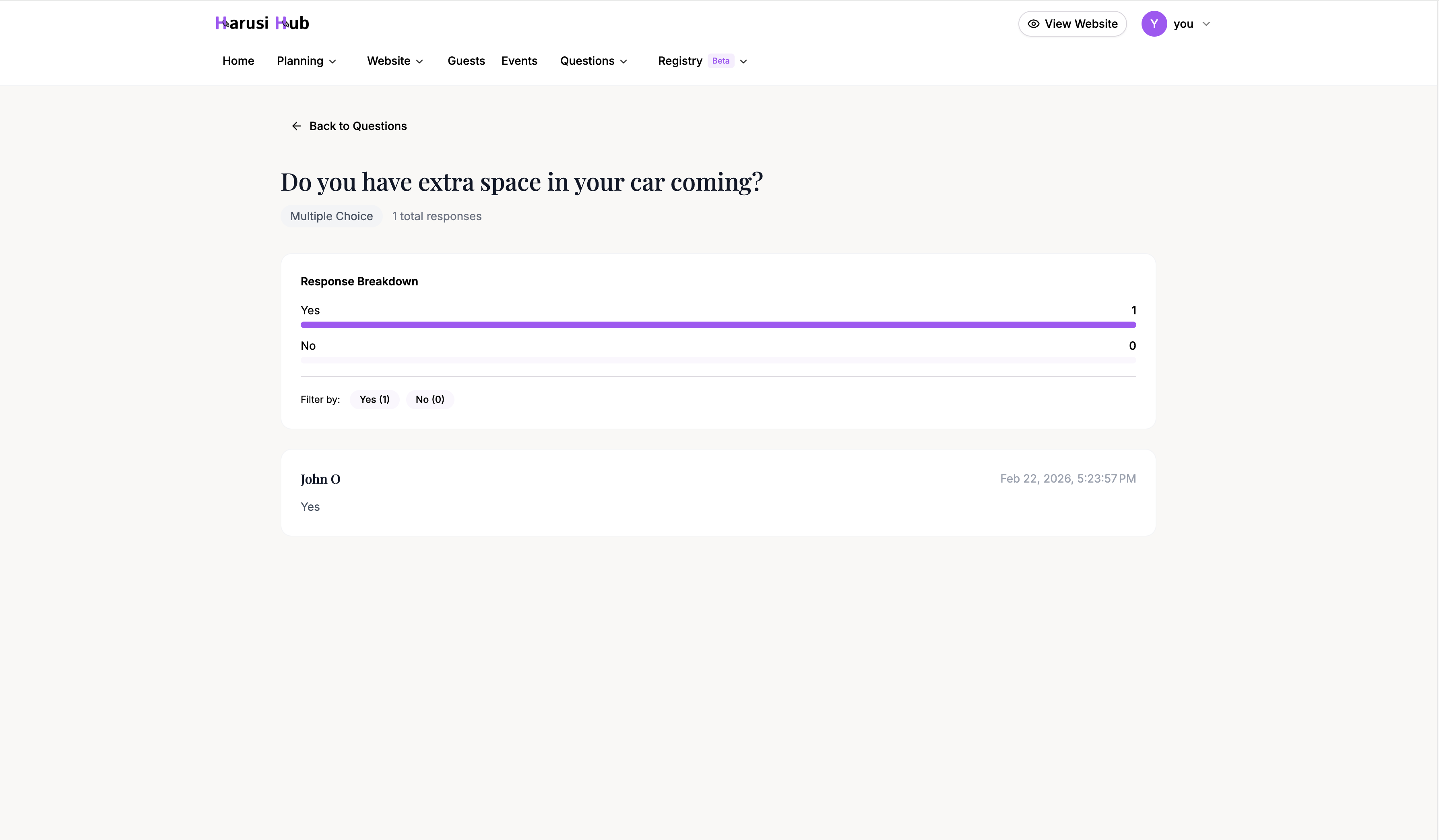
Viewing all responses
Click the chart icon on any question card or the “View all responses” link to open the full answers page. Here you can see every guest’s response with their name and timestamp.
For multiple-choice questions, the answers page includes:
- Response breakdown — a visual chart showing how many guests selected each option, with percentage bars
- Filter by option — click any option chip to filter the list and see only guests who selected that answer. Click again to clear the filter
This makes it easy to quickly see, for example, how many guests chose each meal option or which transport preference is most popular.