
Choose and Change Your Theme
Browse, search, and apply a theme to customize your wedding website's look and feel.
Last updated February 21, 2026
Finding your theme
To browse themes, go to Dashboard > Website > Theme. You’ll see a paginated grid with over 146 themes to choose from.
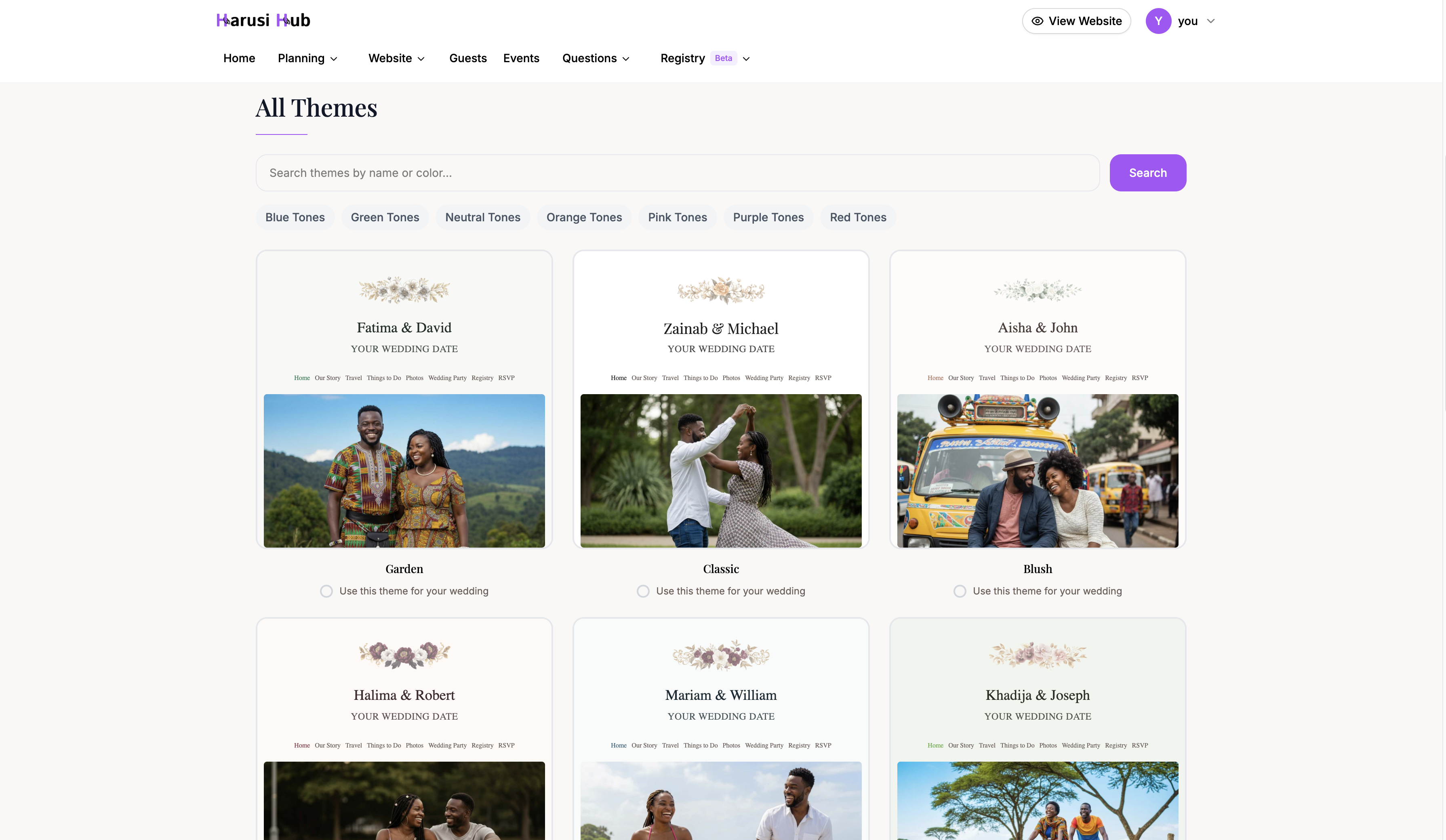
Each theme card shows a preview of the colors, fonts, and floral decorations it includes. Click through pages at the bottom to explore more options.
Searching and filtering
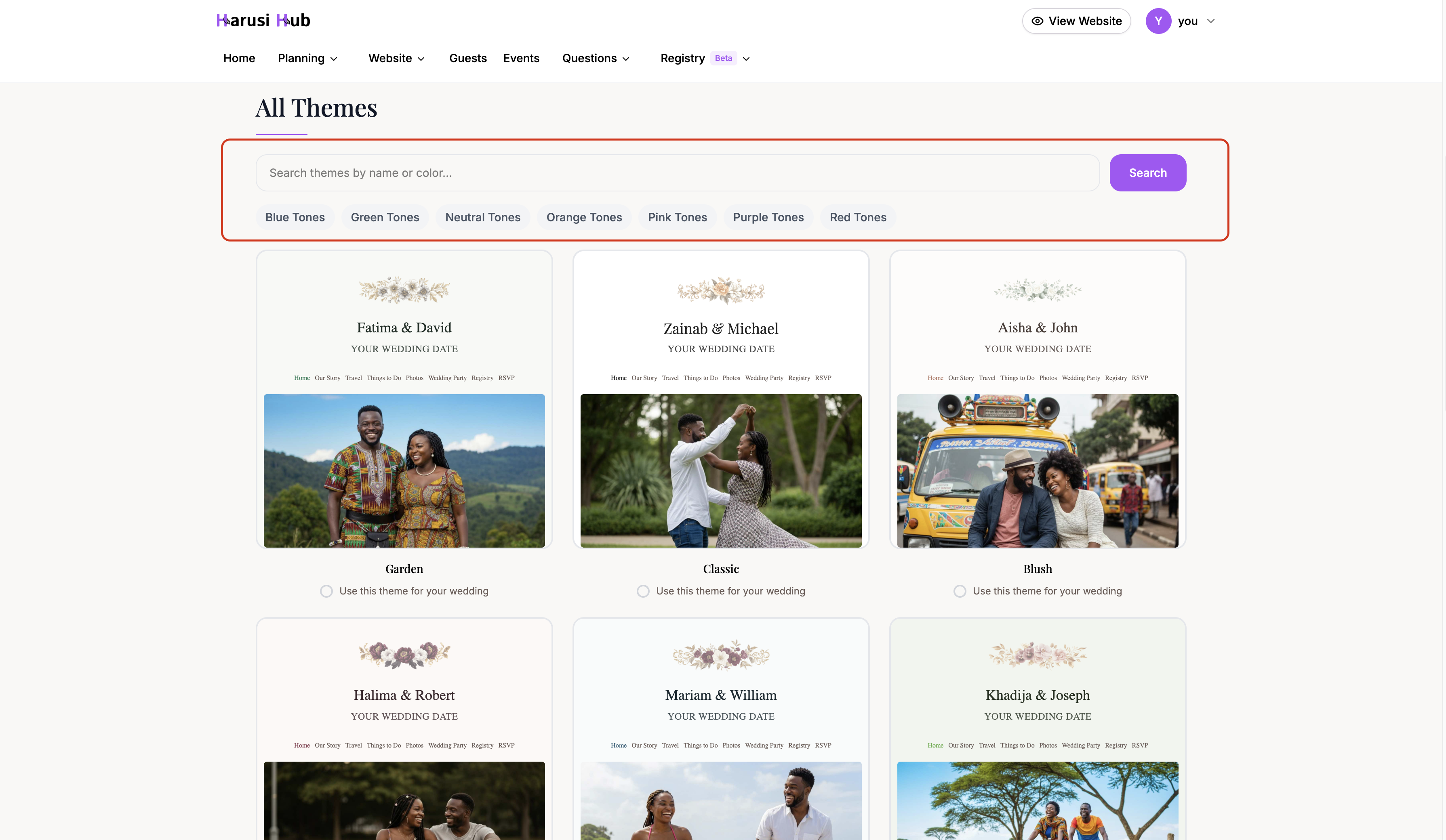
Use the search bar at the top of the theme grid to find themes by name or color. For example, searching “blush” will show themes with blush tones.
You can also narrow your results using tag filters below the search bar. Tags represent style categories, so you can quickly find themes that match a specific aesthetic.
Your current theme
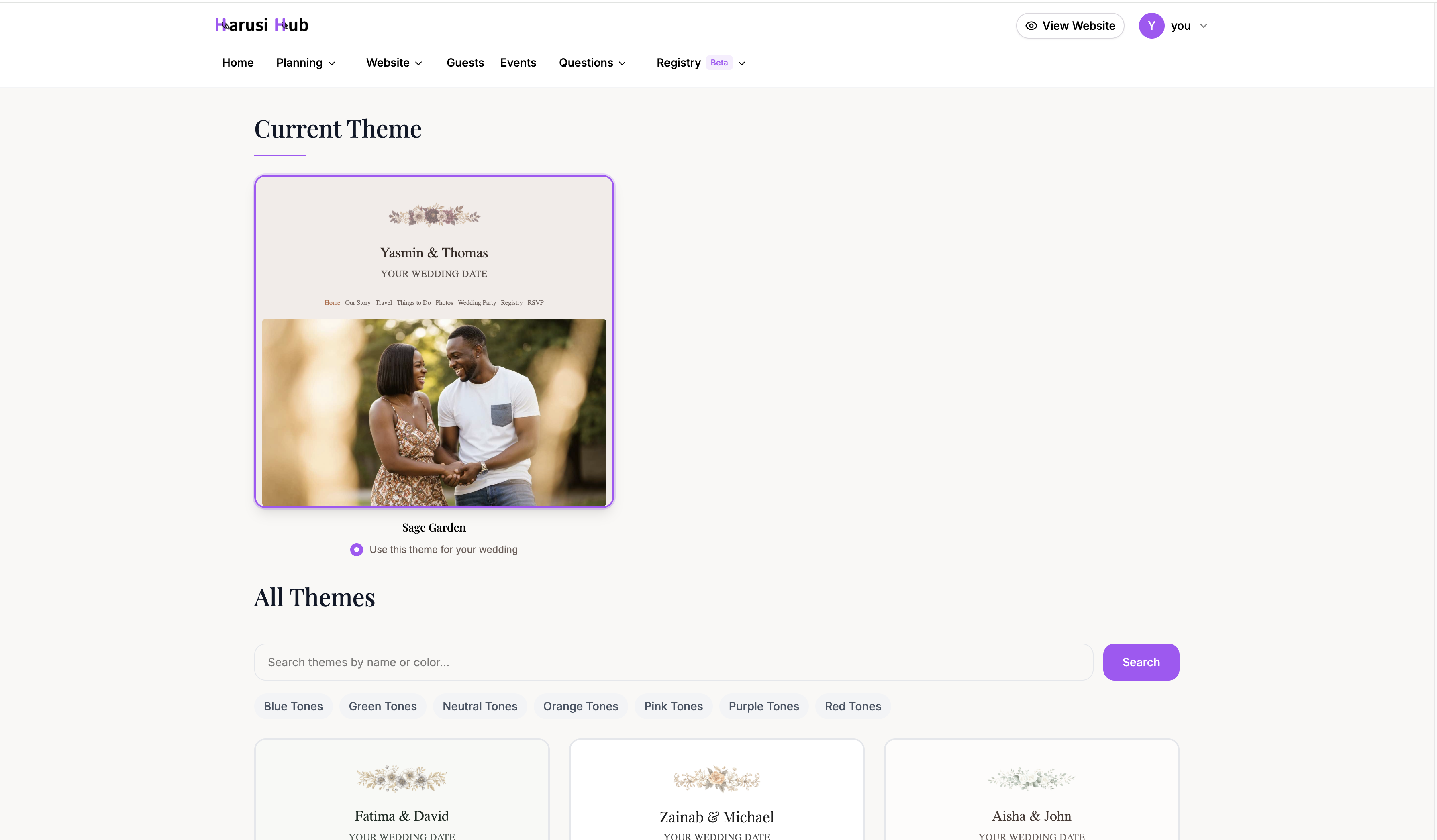
Your currently active theme is displayed at the top of the page, above the grid. This makes it easy to see what you have applied and compare it against other options.
Applying a theme
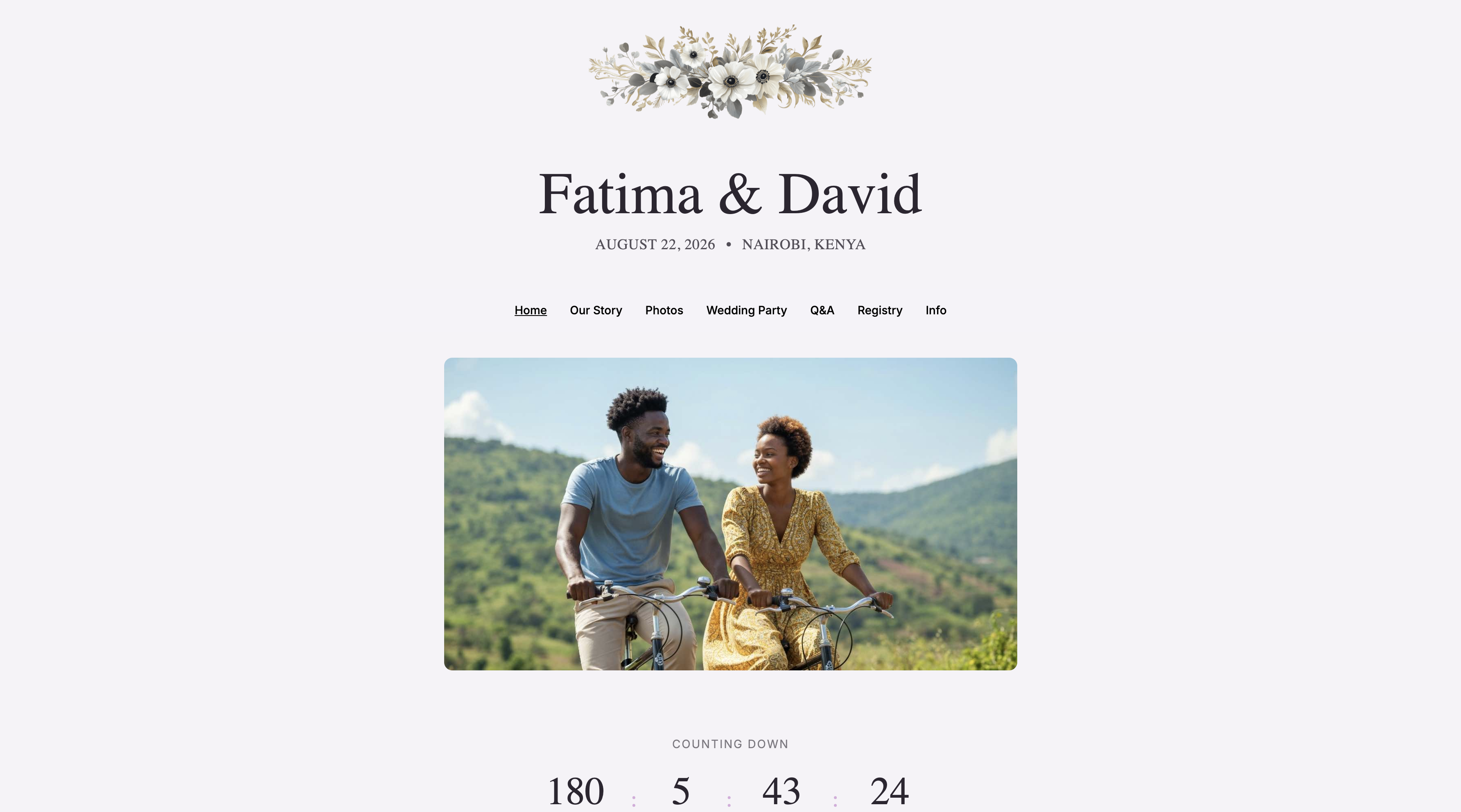
To apply a new theme, simply click on the theme card in the grid. The theme will be applied to your wedding website immediately.
Themes control the overall appearance of your site, including:
- Colors — background, text, and accent colors
- Fonts — heading and body font pairings
- Flower decorations — floral illustrations and ornamental elements
Changing your theme later
You can change your theme at any time by returning to Dashboard > Website > Theme and selecting a different one. There is no limit to how often you can switch.
Your website content (text, photos, guest list) stays the same when you change themes — only the visual styling updates.