
Create Personalized Invite Links
Set up unique invitation links for different inviters and track who views them.
Last updated February 21, 2026
Invite links let you create personalized invitation URLs that different people can share on your behalf. Each link tracks its own analytics, so you know exactly how many people have seen each invitation.
Getting to Invite Links
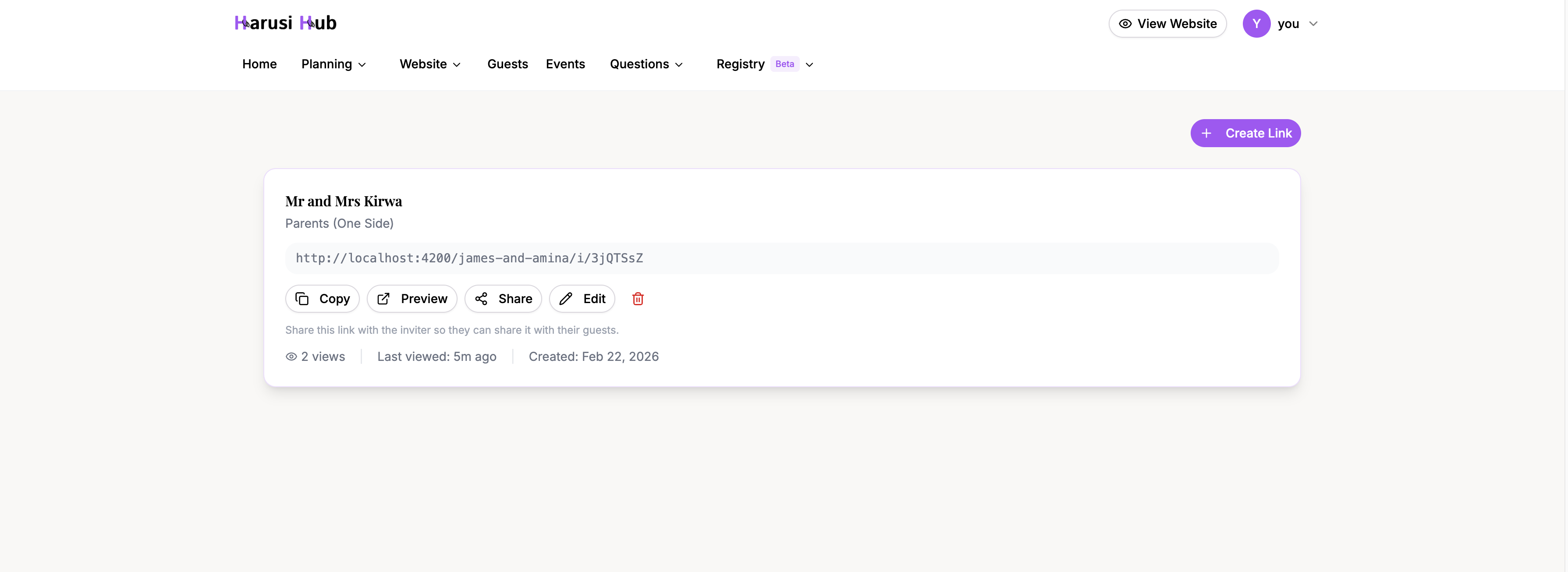
Go to Dashboard > Settings > Invite Links from the sidebar. You’ll see a list of all your existing invite links with their stats.
What Are Invite Links?
Each invite link is a unique URL that displays a personalized wedding invitation. The invitation shows the inviter’s name (for example, “You are cordially invited by John & Mary Odera”) along with your wedding details. When guests open the link, they can RSVP directly, and they’ll automatically be attributed to that invite source.
Source Types
When creating a link, you choose a source type that describes who is sharing the invitation. There are 9 options:
- The Couple — for you and your partner to share directly
- Parents (Both Sides) — for when both sets of parents invite together
- Parents (One Side) — for one set of parents
- Single Parent — for an individual parent
- Sibling — for a brother or sister
- Best Man / Maid of Honor — for your wedding party leads
- Friend Group — for a group of friends sharing one link
- Extended Family — for aunts, uncles, cousins, etc.
- Custom — for any other scenario
Creating a New Link
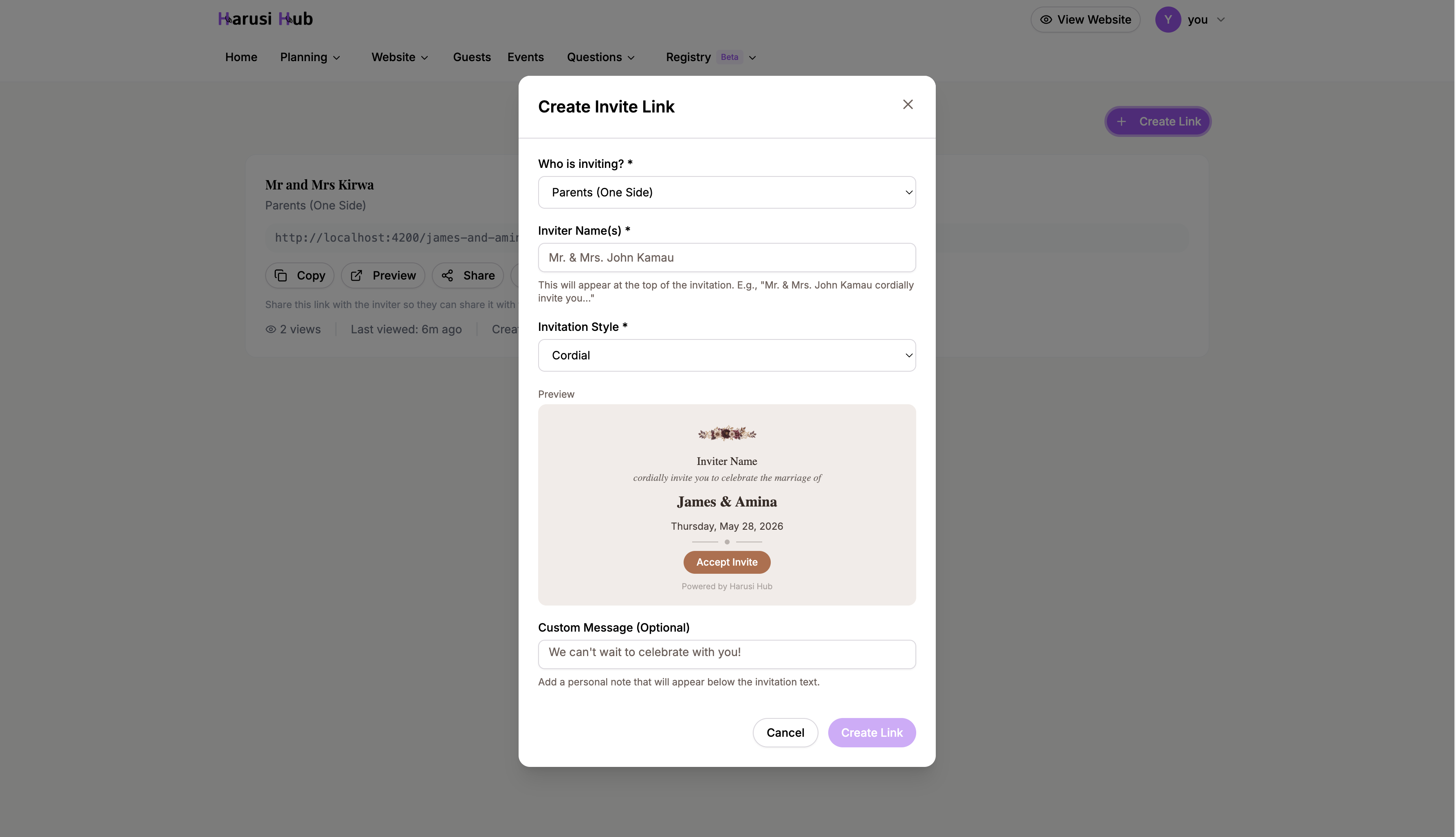
- Click Create Link on the invite links page.
- Enter the inviter name(s) — for example, “Mr. & Mrs. Kamau” or “The Bridal Party.”
- Select the source type from the list above.
- Choose an invitation style: Cordial, Modern, Traditional, or Romantic. This affects the tone and wording of the invitation.
- Optionally add a custom message that appears on the invitation.
- Click Save to generate your unique link.
Sharing Your Links
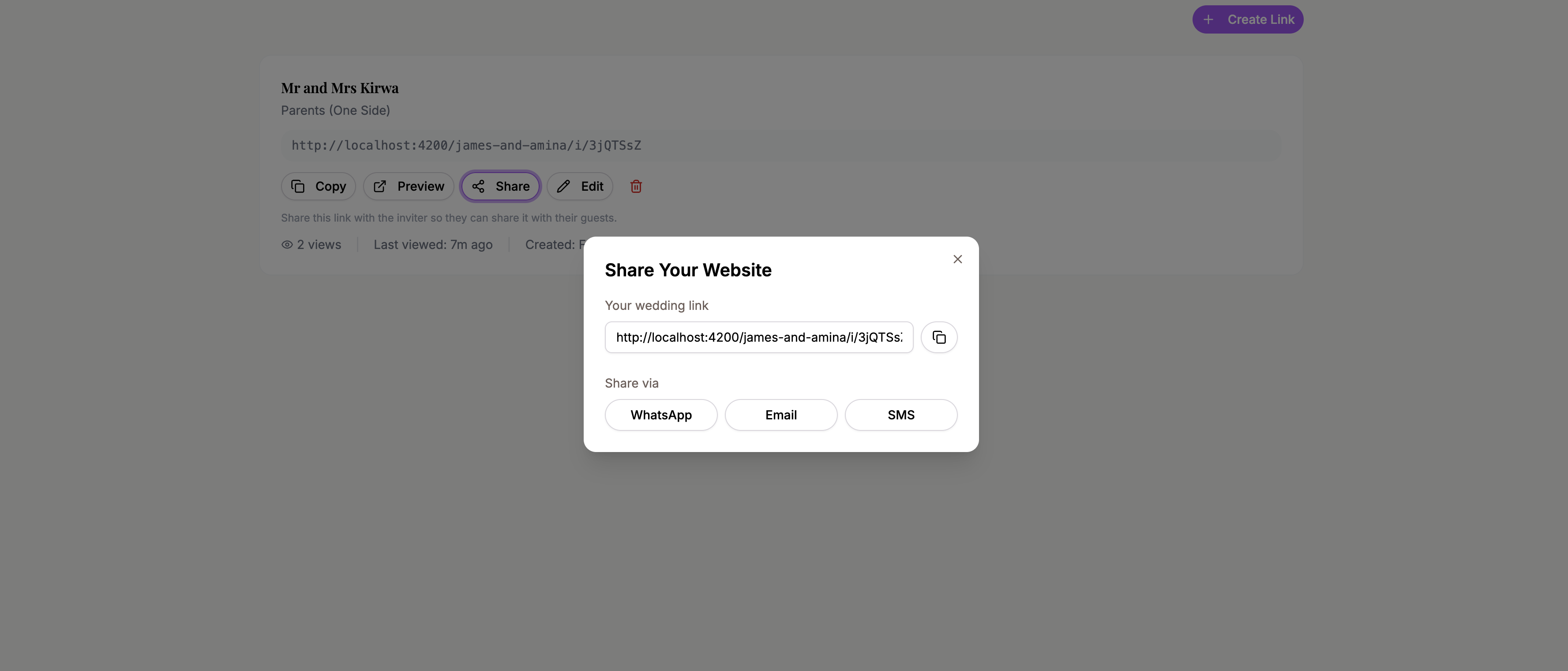
Once a link is created, you have several ways to share it:
- Copy link — copies the URL to your clipboard
- Preview — opens the invitation in a new window so you can see how it looks
- WhatsApp — opens WhatsApp with the link ready to send
- Email — opens your email client with the link in the body
- SMS — opens your messaging app with the link
Link Analytics
Each invite link card shows real-time stats:
- View count — how many times the link has been opened
- Last viewed — shown as relative time (e.g., “5m ago”, “2h ago”, “3 days ago”)
- Created date — when the link was first set up
This helps you see which links are getting traction and which might need a reminder share.
Managing Your Links
Active and Inactive Status
Each link has an active or inactive status. Active links are accessible to anyone with the URL. You can deactivate a link to temporarily disable it without deleting it.
Editing Links
Click on any link card to update the inviter names, source type, invitation style, or custom message. The URL stays the same, so anyone who already has the link will see the updated version.
Deleting Links
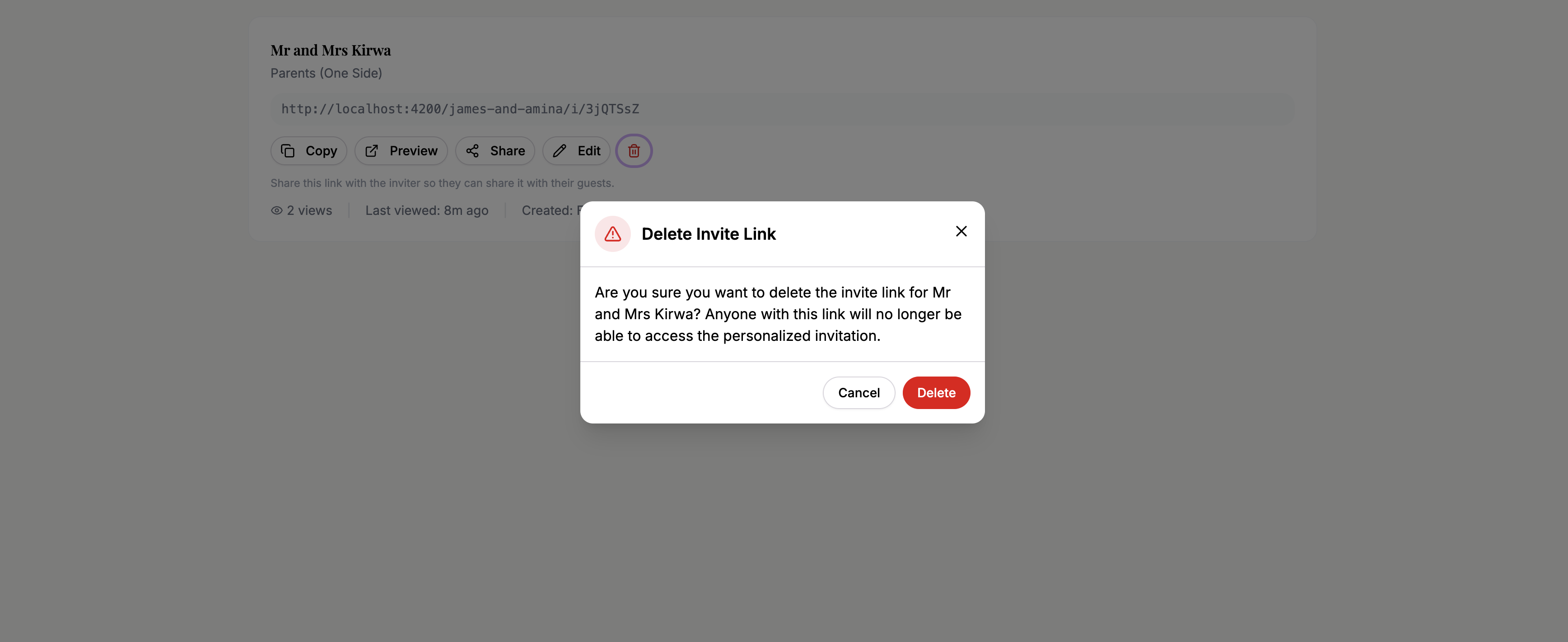
To remove a link permanently, open it and click Delete. You’ll be asked to confirm. Once deleted, the URL will no longer work.
How Guests Connect to Sources
When a guest opens an invite link and submits their RSVP, they are automatically attributed to that invite source. This means you can see on your guest list exactly which link brought each guest in. No manual tracking needed.