
Track Budget Line Items
Add, edit, and organize your wedding expenses with line items, categories, and status tracking.
Last updated February 21, 2026
What are line items?
Line items are the individual expenses that make up your wedding budget. Each one represents something you’re spending money on, like a venue deposit, catering, or a photographer. You can track estimated costs, final costs, vendor details, and payment progress for each item.
The Overview tab
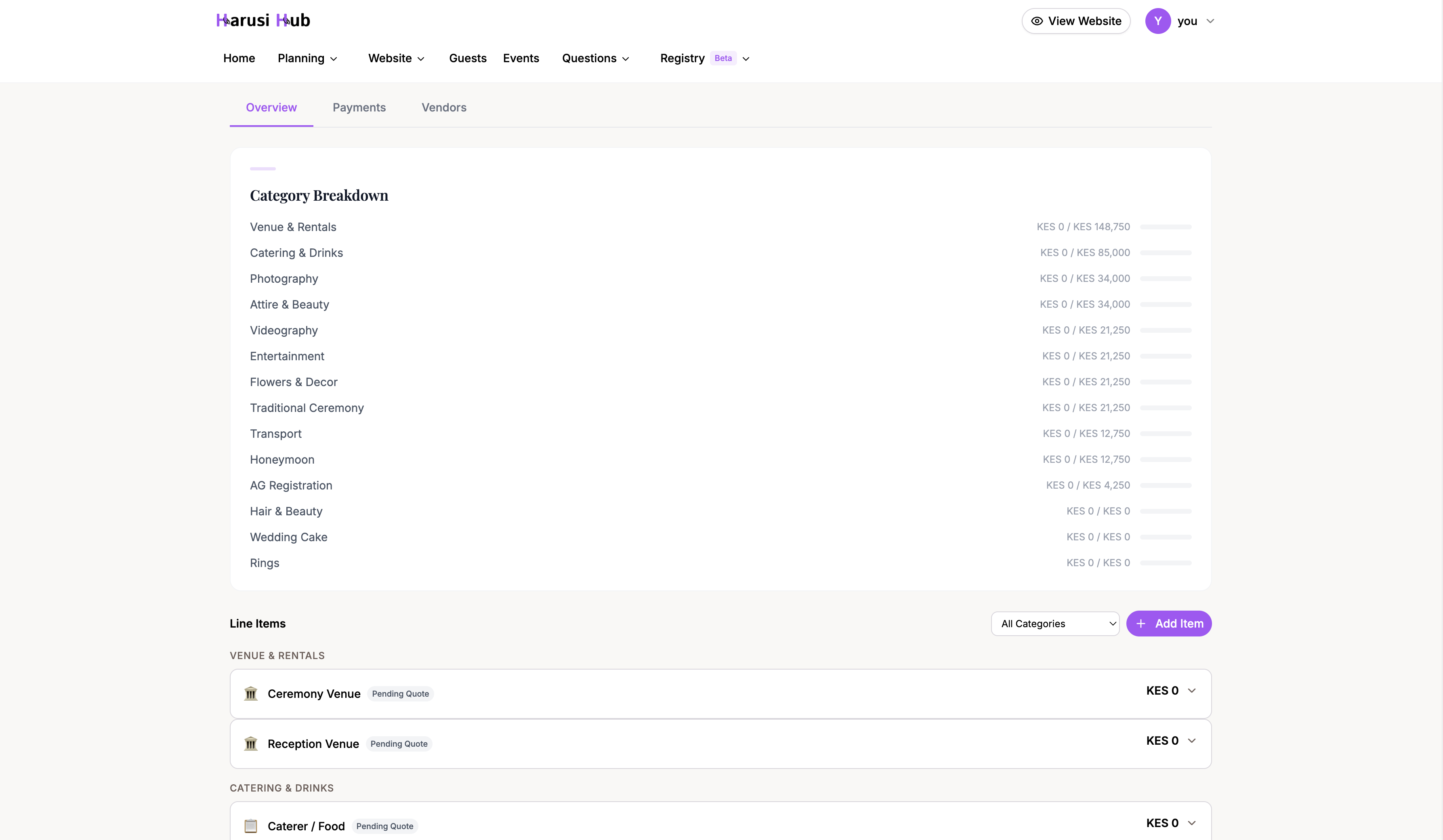
When you open the Budget page, the Overview tab shows a category breakdown of all your line items. Each category displays a progress bar showing how much has been paid versus how much is allocated.
This gives you a quick snapshot of where your money is going across all 20 expense categories.
Adding a line item
To add a new expense:
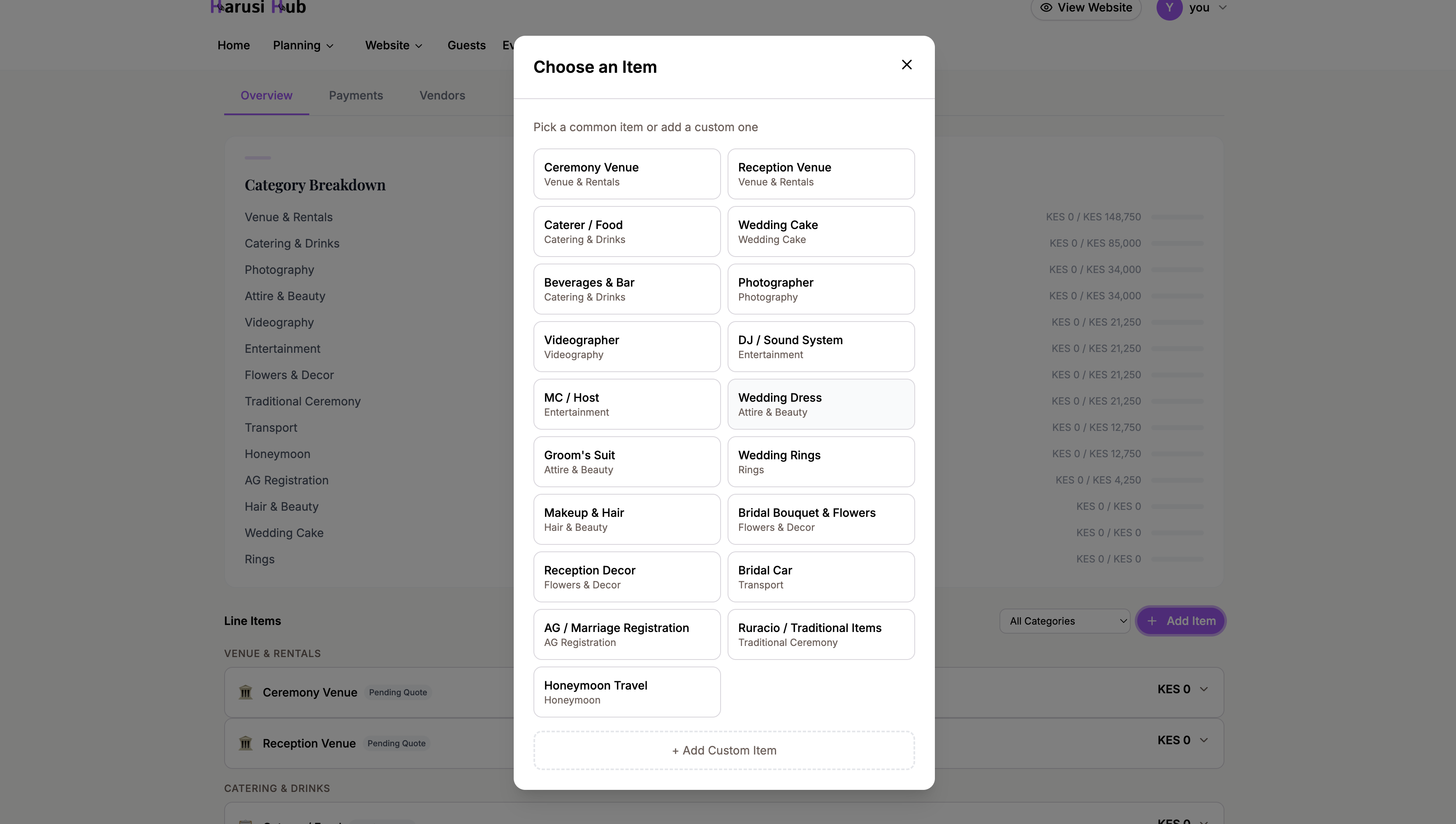
- Click the Add Item button on the Budget page
- Fill in the details:
- Name — what the expense is for (e.g., “Venue rental”)
- Category — choose from 20 categories like Venue, Catering, Photography, Attire, Decor, and more
- Estimated cost — how much you expect to pay
- Final cost — the confirmed amount (fill this in once you have a firm quote or invoice)
- Vendor details — optionally add the vendor’s name, phone number, and email
- Notes — any extra details you want to remember
- Click Save to add the item to your budget
Line item statuses
Every line item has one of five statuses that reflect where you are in the process:
- Pending Quote — you haven’t received pricing yet
- Quoted — you have a quote but haven’t committed
- Booked — you’ve confirmed and committed to this vendor or expense
- Paid — all payments have been made (this is set automatically when payments cover the full cost)
- Cancelled — you’ve decided not to go ahead with this expense
You can manually change the status at any time, except for the automatic “Paid” update that happens when your payments match the cost.
Reading a line item card
Each line item appears as a card showing:
- A category icon on the left
- The item name and status badge
- Estimated cost versus final cost
- Paid amount and a mini progress bar
Expanding a card
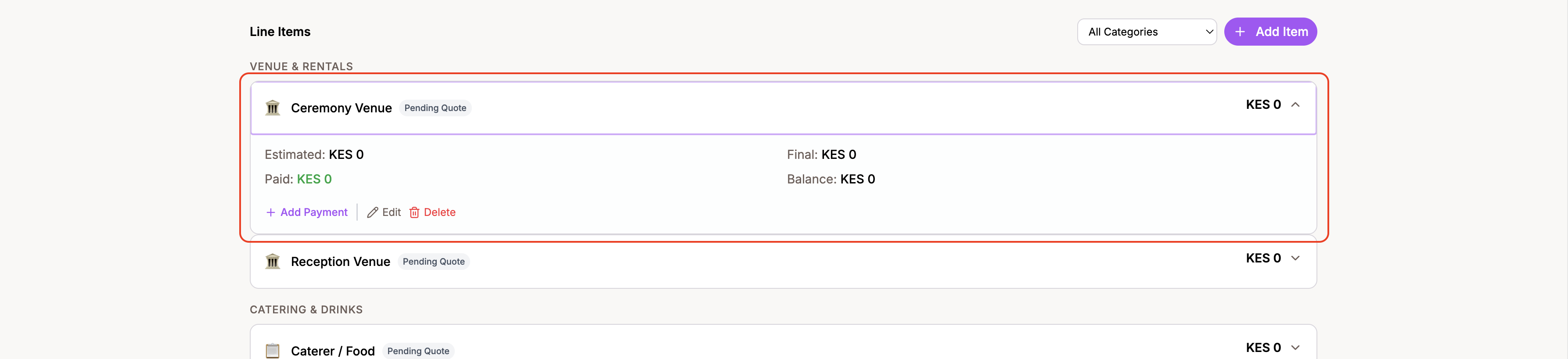
Click on any line item card to expand it and see the full details:
- Vendor information — name, phone, and email
- Cost breakdown — estimated cost, final cost, total paid, and remaining balance
- Notes you’ve added
- Payment history — a list of all payments recorded against this item
Editing and deleting items
To edit a line item, expand the card and click Edit. Update any field and save your changes. Your budget totals will recalculate automatically.
To delete a line item, click Delete on the expanded card. This will also remove any payments associated with that item, so make sure you want to remove it before confirming.
Category breakdown view
The category breakdown shows each of the 20 expense categories with:
- Total paid and allocated amounts
- A mini progress bar for each category
- An over-budget badge if the category’s estimated costs exceed what you planned
This view helps you spot which areas of your wedding are eating up more of your budget than expected.
Exporting your budget
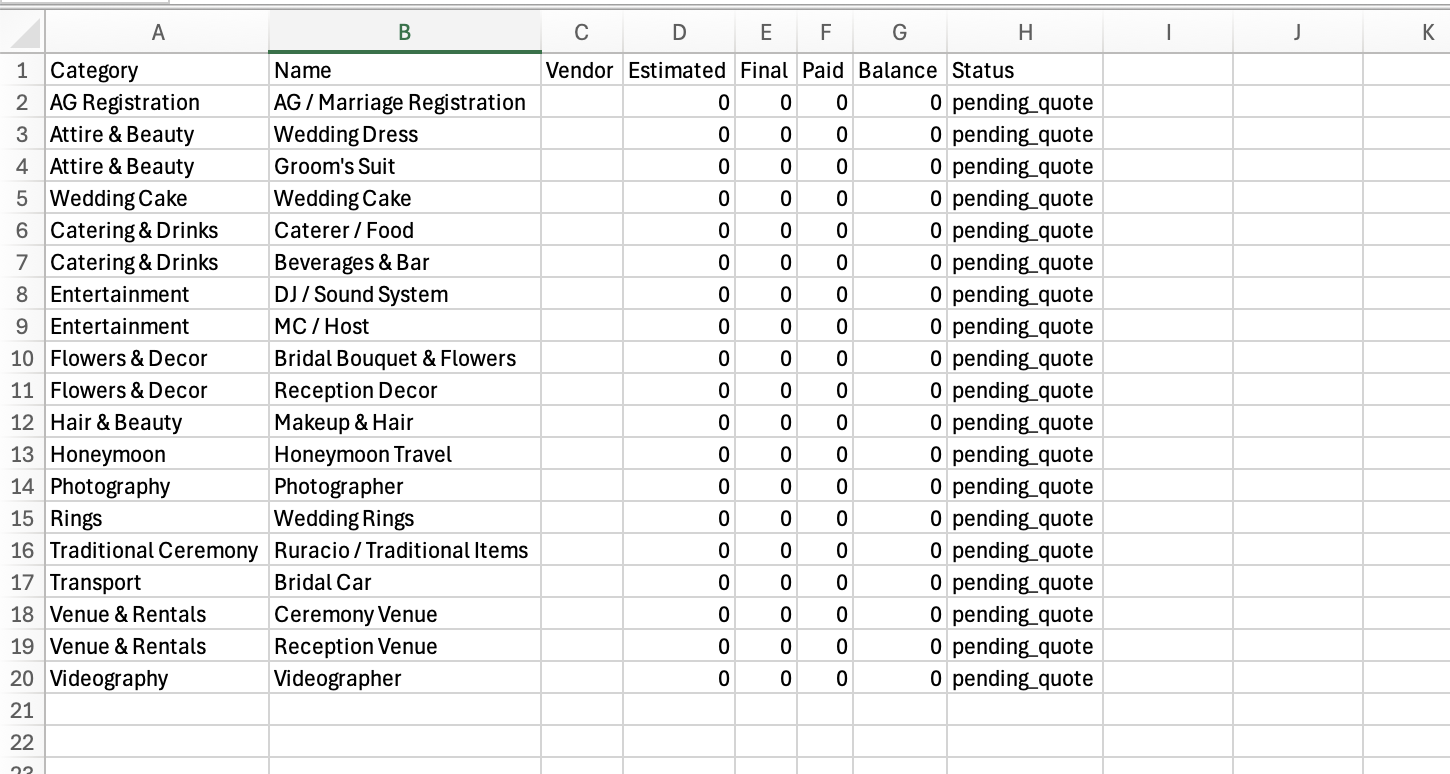
You can export your current filtered view as a CSV file. This is useful for sharing your budget with your partner, a planner, or anyone helping with finances. The export respects whatever budget context and filters you currently have selected.
Tips for managing line items
- Update statuses as you go so your budget page always reflects reality. Moving items from “Pending Quote” to “Booked” helps you see real commitments at a glance.
- Fill in final costs once you have a confirmed price. The difference between estimated and final cost helps you track how accurate your planning was.
- Add vendor contact details to each item so everything is in one place when you need to follow up.