
Create Photographer Upload Links
Generate unique upload links so your photographers can upload wedding photos directly to your gallery.
Last updated February 21, 2026
What are photographer upload links?
Photographer upload links let you generate unique URLs that you can share with your photographers. Each link gives a photographer direct access to upload photos to your wedding gallery — no account required on their end.
This saves you the hassle of collecting photos via USB drives, file-sharing apps, or email. Your photographers simply open the link and upload.
Getting to photographer tokens
Go to Dashboard > Website > Photographers. You can also find this in the post-wedding section of your dashboard after your wedding date has passed.
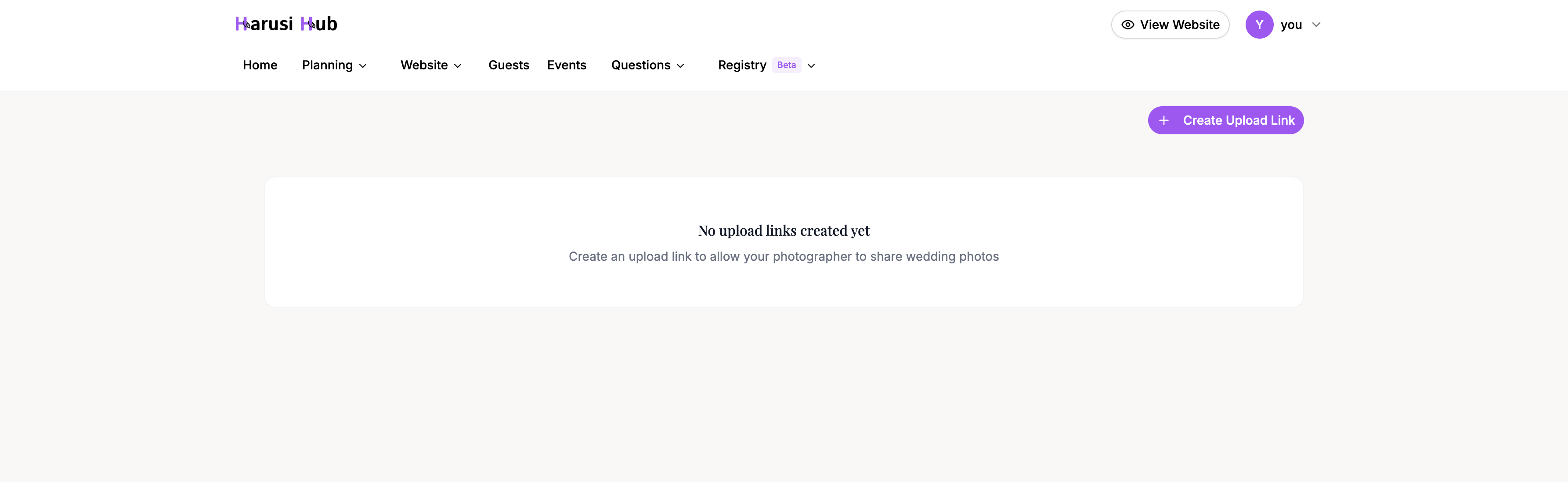
If you haven’t created any upload links yet, you’ll see an empty state with a message explaining the feature and a button to create your first link.
Creating an upload link
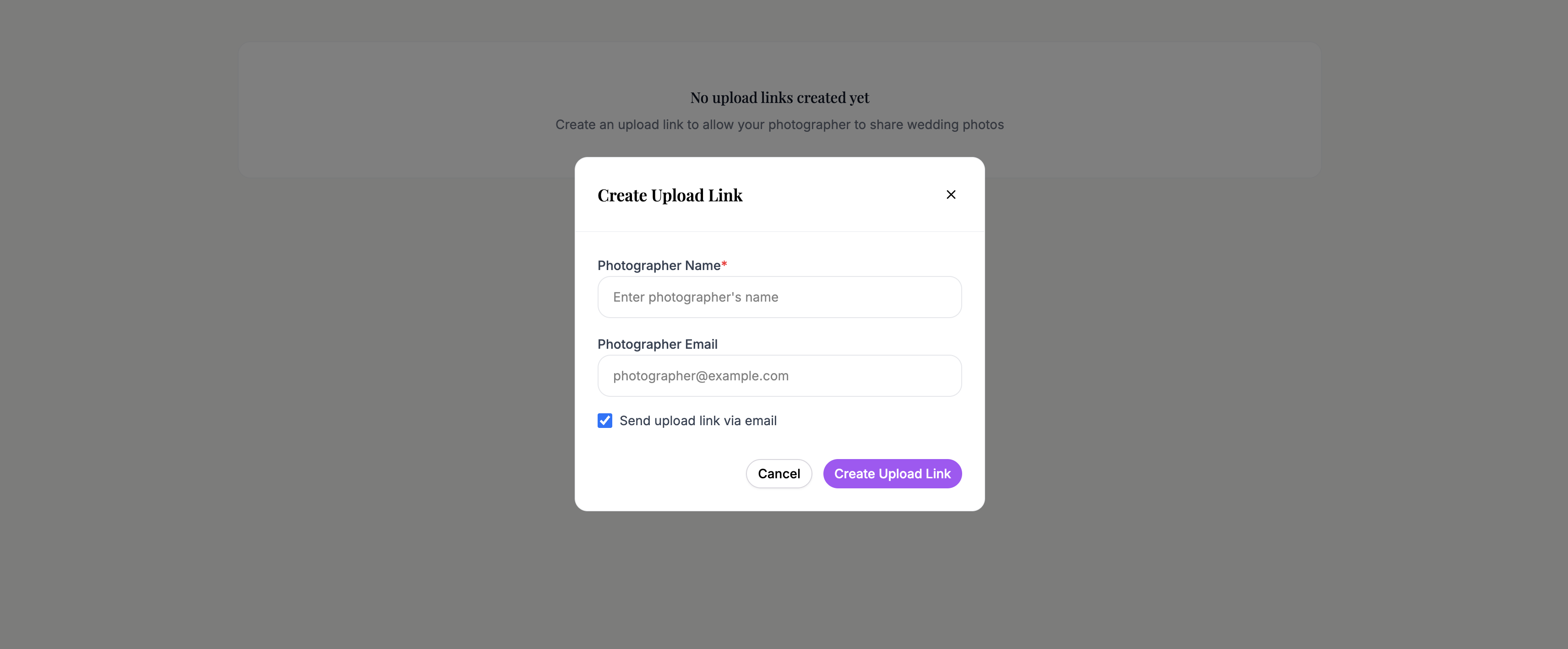
Click the Create Upload Link button to open the creation dialog.
Fill in the following:
- Photographer name — required. This helps you identify who uploaded which photos.
- Email address — optional. If provided, Harusi Hub can send the photographer an email with their upload link.
- Send email notification — toggle this on if you want the system to email the link automatically.
Click Create to generate the link.
Managing your upload links
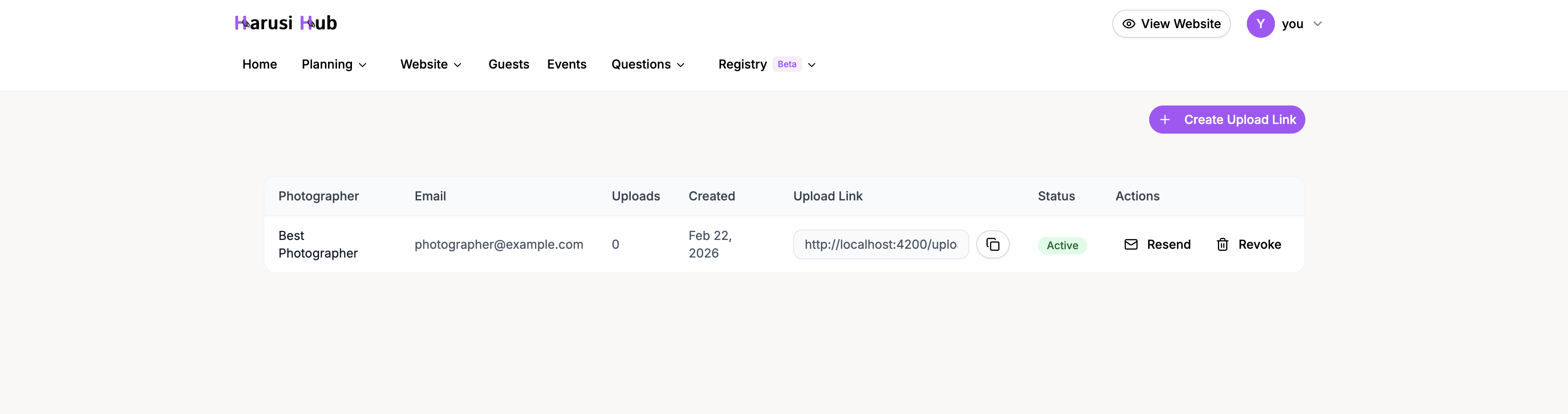
Once you’ve created one or more links, they appear in a table with the following columns:
- Name — the photographer’s name
- Email — their email address (if provided)
- Upload count — how many photos this photographer has uploaded so far
- Created date — when the link was generated
- Upload link — the unique URL
- Status — either Active or Revoked
- Actions — options to copy, resend, or revoke
Copying and sharing a link
Click the copy icon next to any upload link to copy it to your clipboard. You can then paste it into a message, email, or WhatsApp chat to share with your photographer.
This is useful if you chose not to send an email notification when creating the link, or if the photographer needs the link again.
Resending an email invite
If you provided an email address when creating the link, you can click Resend in the actions column to send the upload link to the photographer again. This is helpful if the original email was missed or lost.
Revoking access
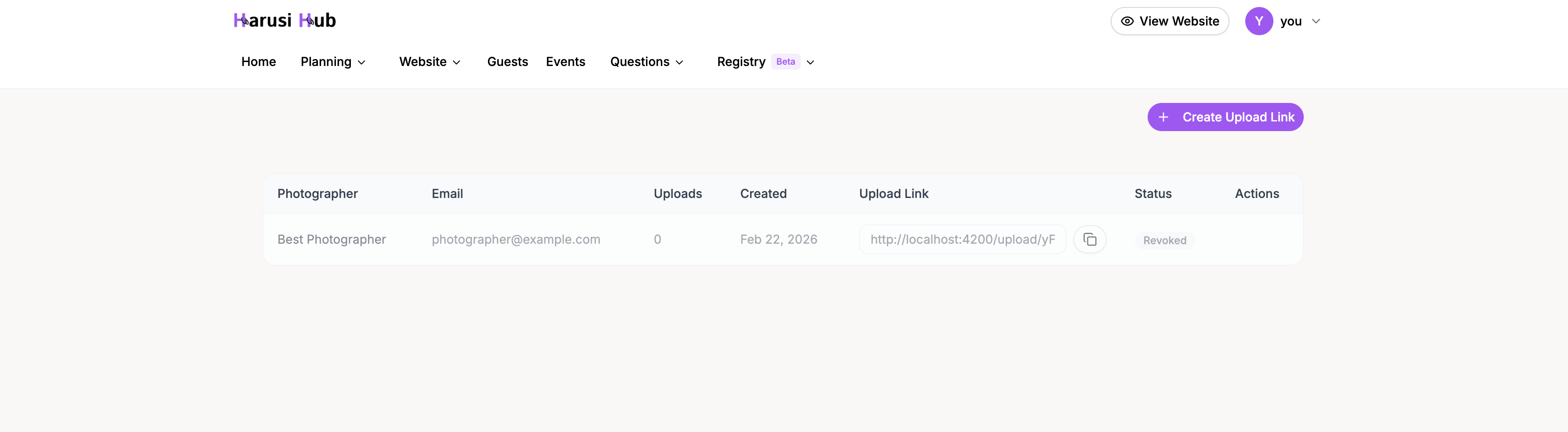
When you no longer want a photographer to upload photos — for example, after they’ve finished uploading — click Revoke in the actions column.
This changes the link’s status from Active to Revoked. The photographer will no longer be able to use that link to upload photos.
Tracking uploads
The Upload count column shows how many photos each photographer has uploaded. This gives you a quick way to confirm that your photographers have delivered their photos and to see the contribution from each one.