
Manage Your Guest List
Add, edit, search, and export your wedding guests all in one place.
Last updated May 4, 2026
Your guest list is the backbone of your wedding planning. Harusi Hub gives you a central place to track every guest, their RSVP status, plus-ones, and more.
Getting to Your Guest List
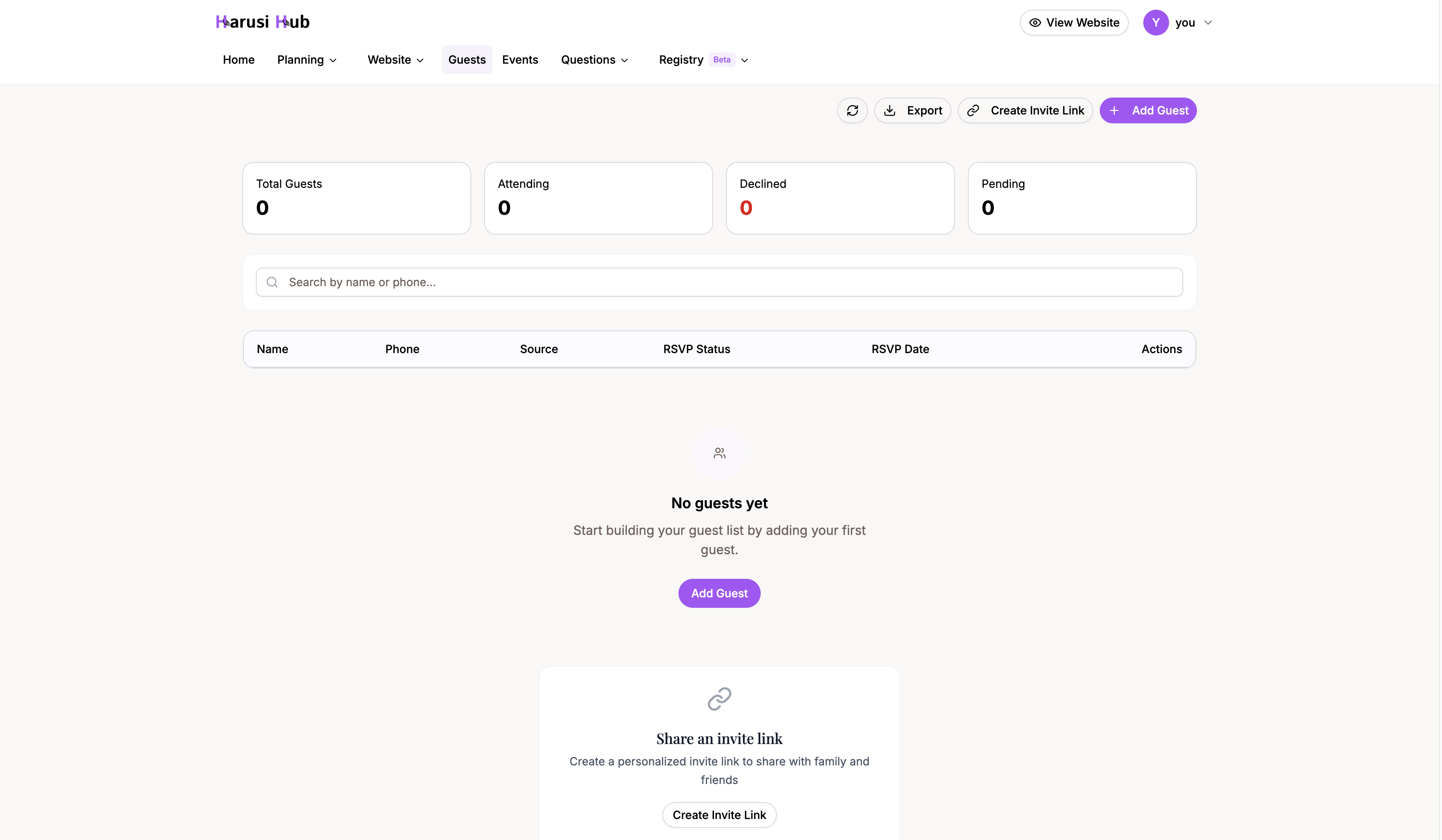
Head to Dashboard > Guests from the sidebar. At the top of the page, you’ll see RSVP statistics cards showing your totals at a glance: attending, declined, pending, and total guests.
Adding Guests
To add a new guest:
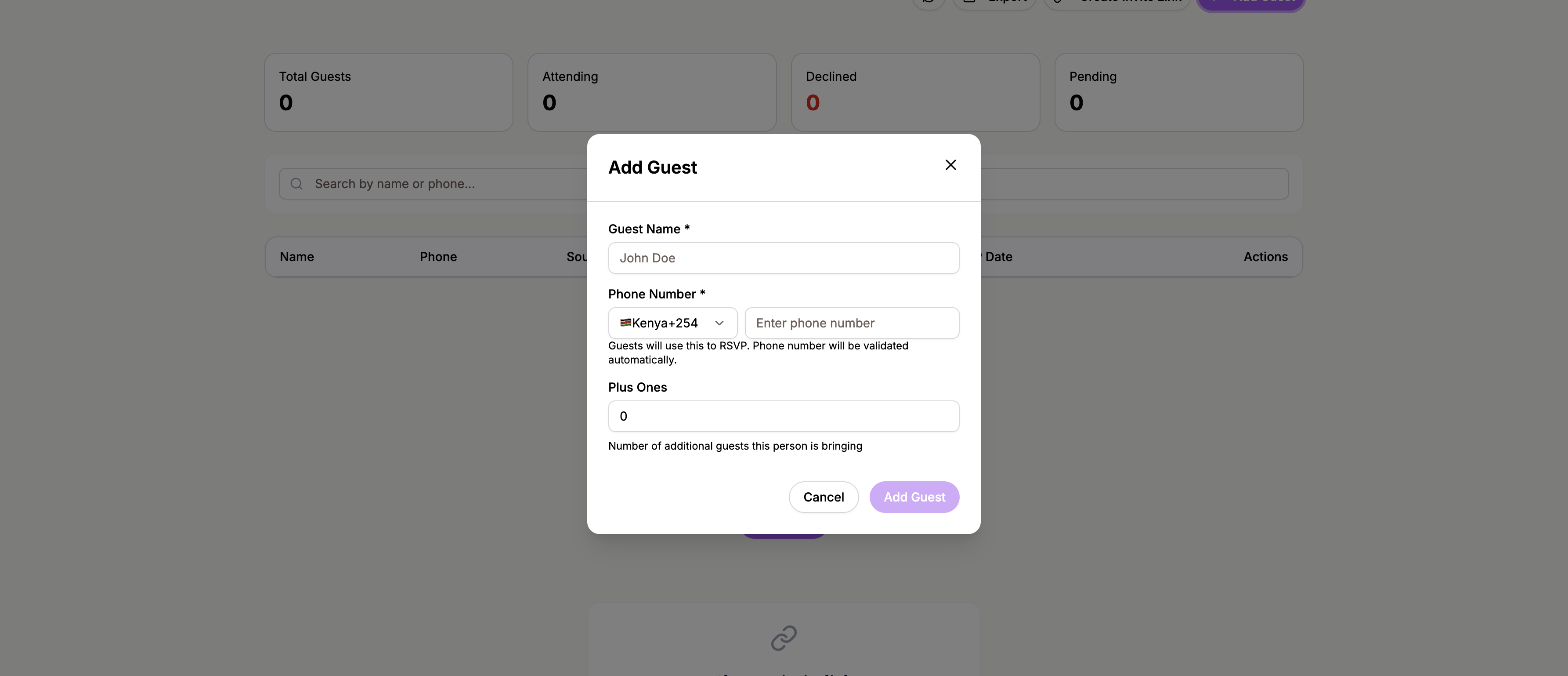
- Click the Add Guest button at the top of the page.
- Fill in the guest’s name (required) and phone number (required).
- Set the plus-one count (0 to 10) if the guest is bringing others.
- Click Save to add them to your list.
Editing and Deleting Guests
Click on any guest to edit their details. You can update their:
- Name and phone number
- RSVP status (Pending, Yes, or Declined)
- Plus-one names — each plus-one is tracked individually
To delete a guest, open their details and click Delete. You’ll be asked to confirm before the guest is removed.
Searching and Filtering
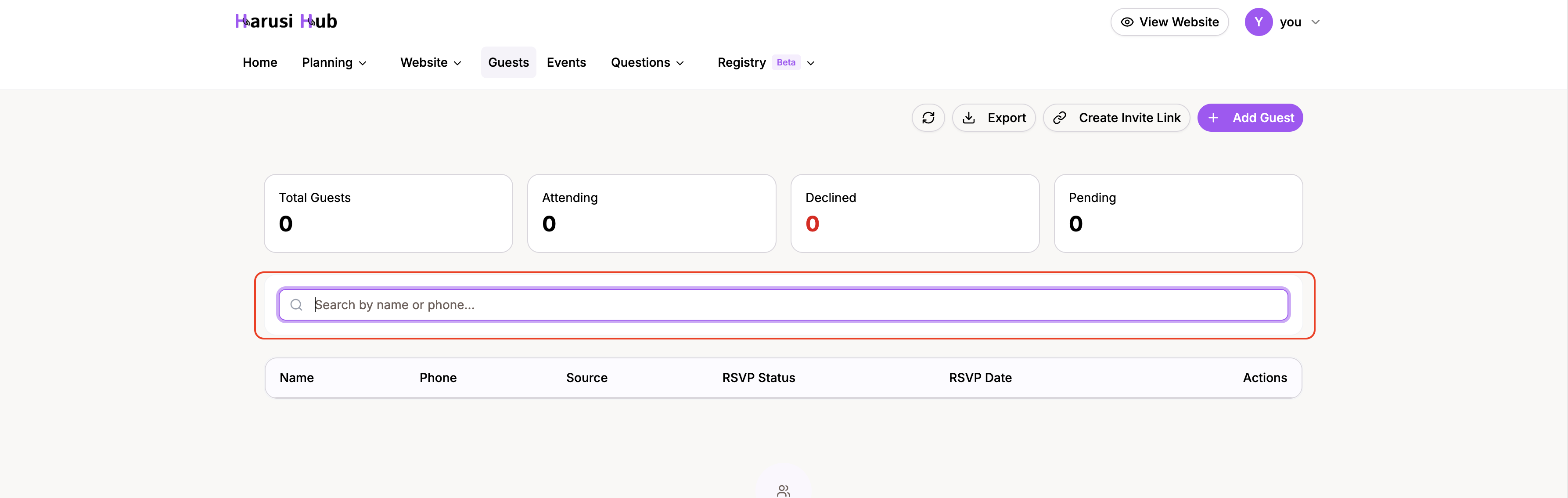
Use the search bar to find guests by name or phone number. Results update in real time as you type.
You can also filter by RSVP status using the filter options:
- All — shows every guest
- Pending — guests who haven’t responded yet
- Yes — confirmed attendees
- Declined — guests who can’t make it
Desktop vs Mobile Views
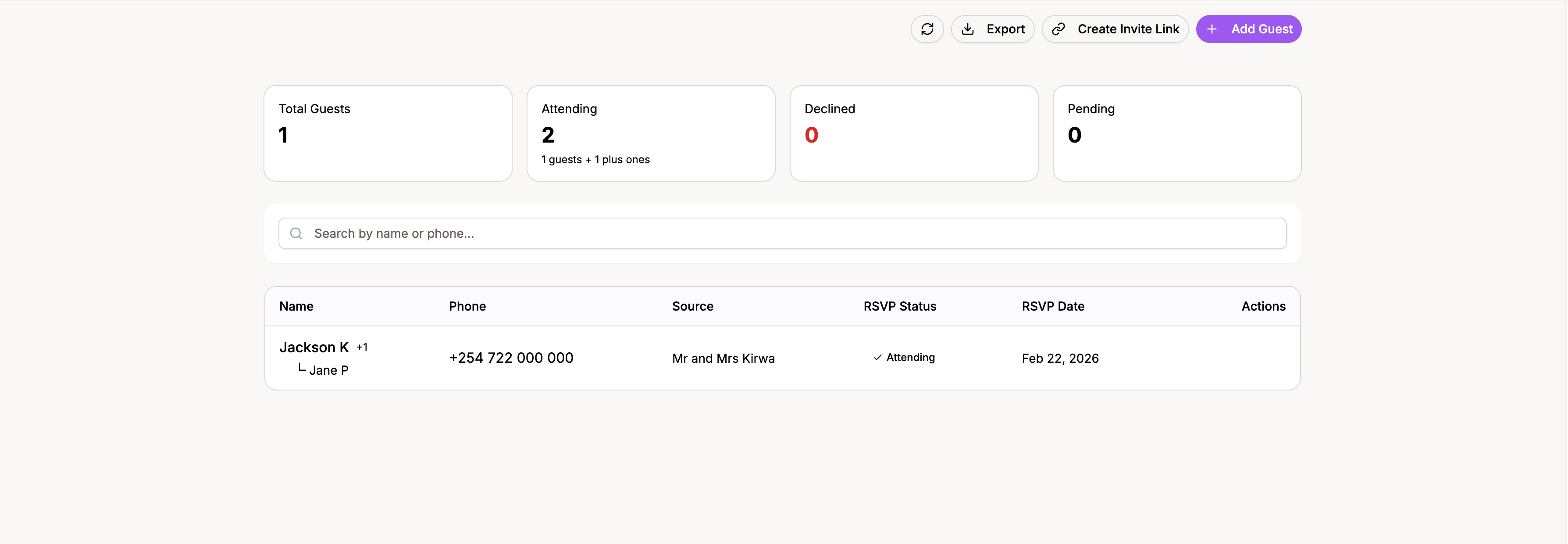
On desktop, your guests are displayed in a table view with columns for name, phone, RSVP status, plus-ones, and invite source.
On mobile, each guest appears as a card with the same information in a compact layout. The experience adapts automatically based on your screen size.
Plus-Ones
Each guest can bring up to 10 plus-ones. When you set a plus-one count, you can also enter individual names for each additional guest. This helps you get an accurate headcount for seating, catering, and other logistics.
Invite Source Attribution
If a guest RSVPs through a personalized invite link, their invite source is automatically recorded. This tells you who invited them — whether it was the couple, a parent, a friend group, or anyone else who shared a link. See Create Personalized Invite Links for more on setting these up.
Pagination
Your guest list loads 50 guests per page. If you have more, click the Load More button at the bottom to see the next batch.
Exporting Your Guest List
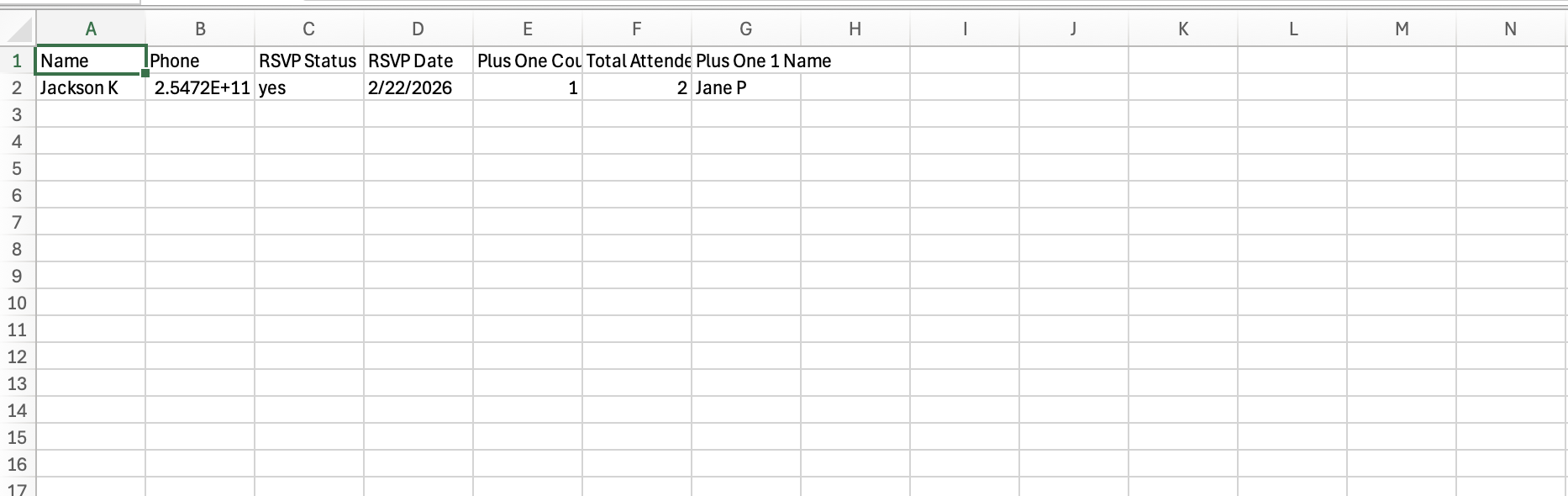
Click the Export button to download your guest list as a CSV file. The export includes:
- Guest name
- Phone number
- RSVP status
- RSVP date
- Plus-one names
- Total attendees (guest + plus-ones)
This is useful for sharing with vendors, printing place cards, or creating seating charts.
Permissions
Owners and partners have full access to manage the guest list — adding, editing, and deleting guests. Other collaborators may have limited access depending on their role. If you need to adjust permissions, head to Dashboard > Team.