
Plan Your Wedding Day Schedule
Build a detailed timeline for your wedding day with AI-generated schedules and multiple view modes.
Last updated February 21, 2026
A well-planned schedule keeps your wedding day running smoothly. Harusi Hub gives you an AI-generated timeline based on Kenyan wedding norms, with full control to customize every detail.
Getting to Your Schedule
Go to Dashboard > Schedule from the sidebar. If this is your first time, you will see a button to generate your schedule.
Generating Your Schedule
Click the Generate Schedule button to create your initial timeline. Harusi Hub will produce 25+ timeline items covering the full wedding day, from morning preparations through the reception. The schedule is based on typical Kenyan wedding timing, so it is a solid starting point that you can adjust to fit your plans.
Schedule Categories
Every schedule item belongs to one of eight categories:
- Morning Prep — getting ready, last-minute checks
- Beauty & Styling — hair, makeup, and grooming
- Spiritual — prayers, blessings, and devotions
- Family — family gatherings and moments
- Travel — transport between venues
- Church Ceremony — the main ceremony program
- Reception — reception activities and entertainment
- Custom — anything else you want to add
Bride, Groom, or Both
Each schedule item is assigned to a side: Bride, Groom, or Both. This lets you manage separate timelines for each partner while keeping shared items visible to everyone.
View Modes
The schedule page offers five different ways to view your timeline. Switch between them using the view selector at the top.
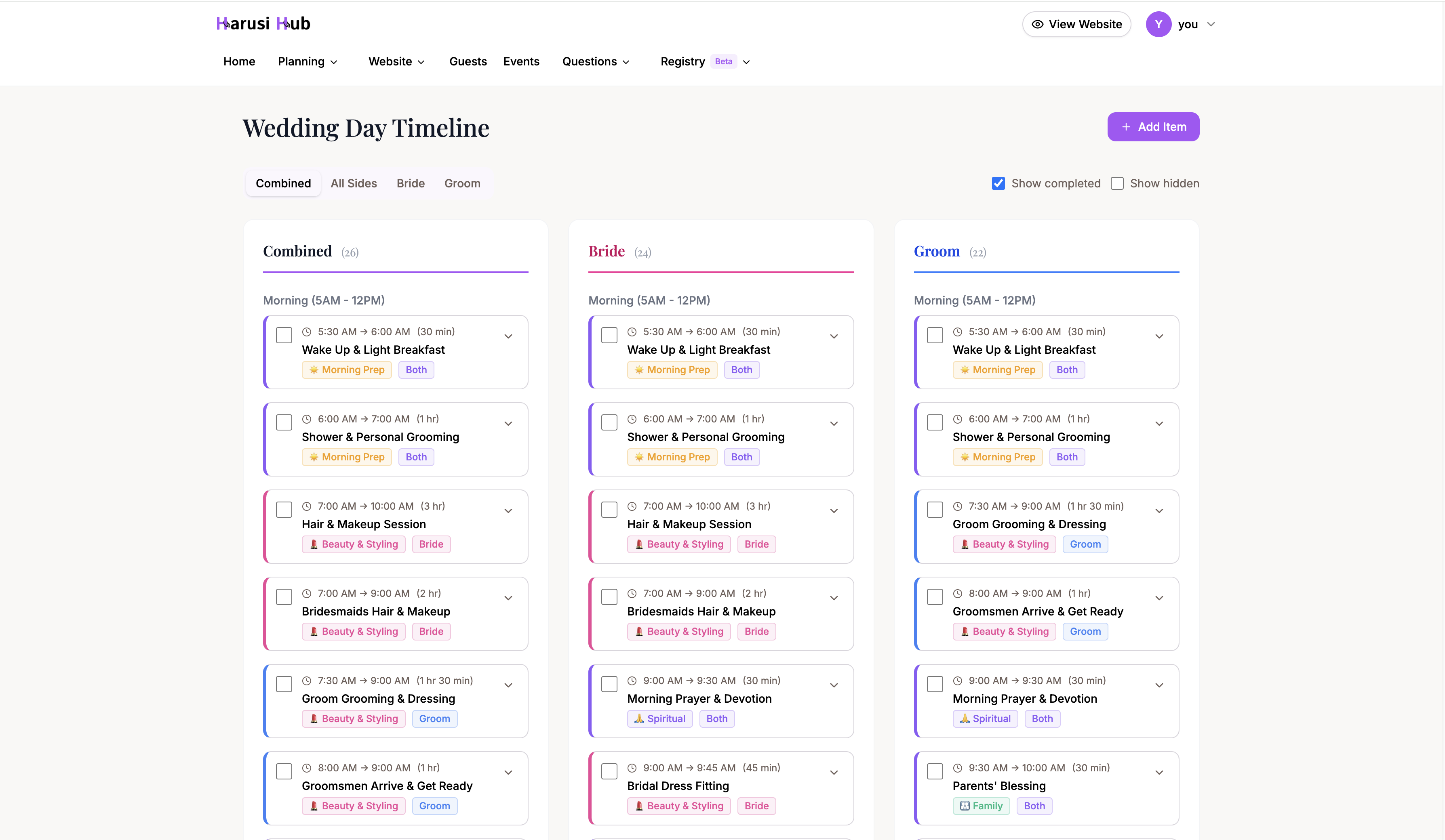
Combined View
The default view shows a 3-column layout with All, Bride, and Groom columns side by side. This gives you a complete picture of what everyone is doing at each point in the day.
All Sides View
A single column showing every item in chronological order, regardless of side. Good for getting a quick overview of the full day.
Bride View
Shows only items assigned to the bride plus shared (“Both”) items. Useful when coordinating the bride’s timeline specifically.
Groom View
Shows only items assigned to the groom plus shared (“Both”) items.
Time of Day Grouping
In list views, items are grouped into three time periods:
- Morning — 5 AM to 12 PM
- Afternoon — 12 PM to 5 PM
- Evening — 5 PM to 11 PM
This makes it easy to focus on a specific part of the day.
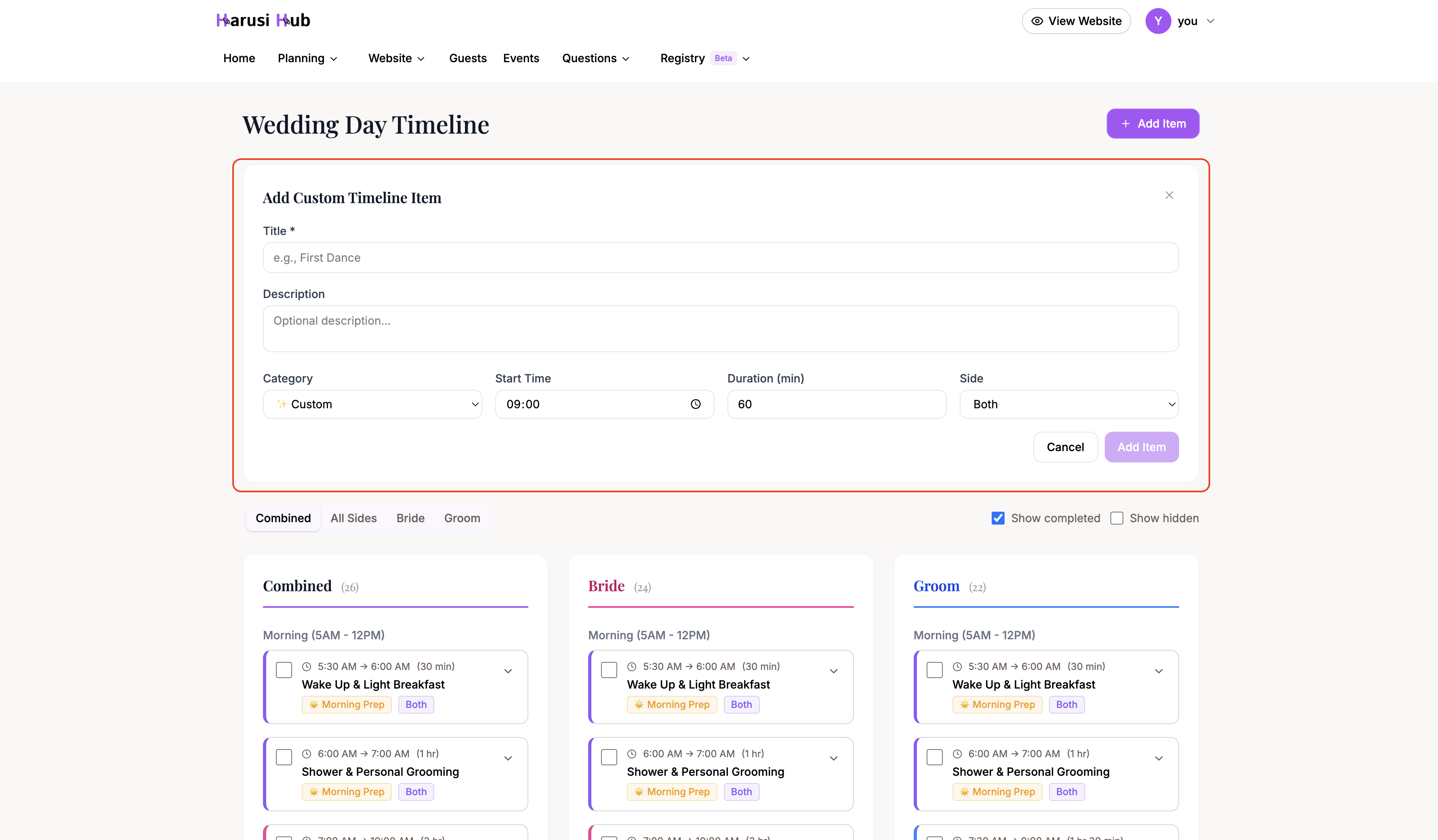
Adding a Custom Item
- Click the Add Item button.
- Enter a title and optional description.
- Choose a category from the dropdown.
- Set the start time.
- Set the duration (in 5-minute increments).
- Assign the item to Bride, Groom, or Both.
- Click Save.
Editing Schedule Items
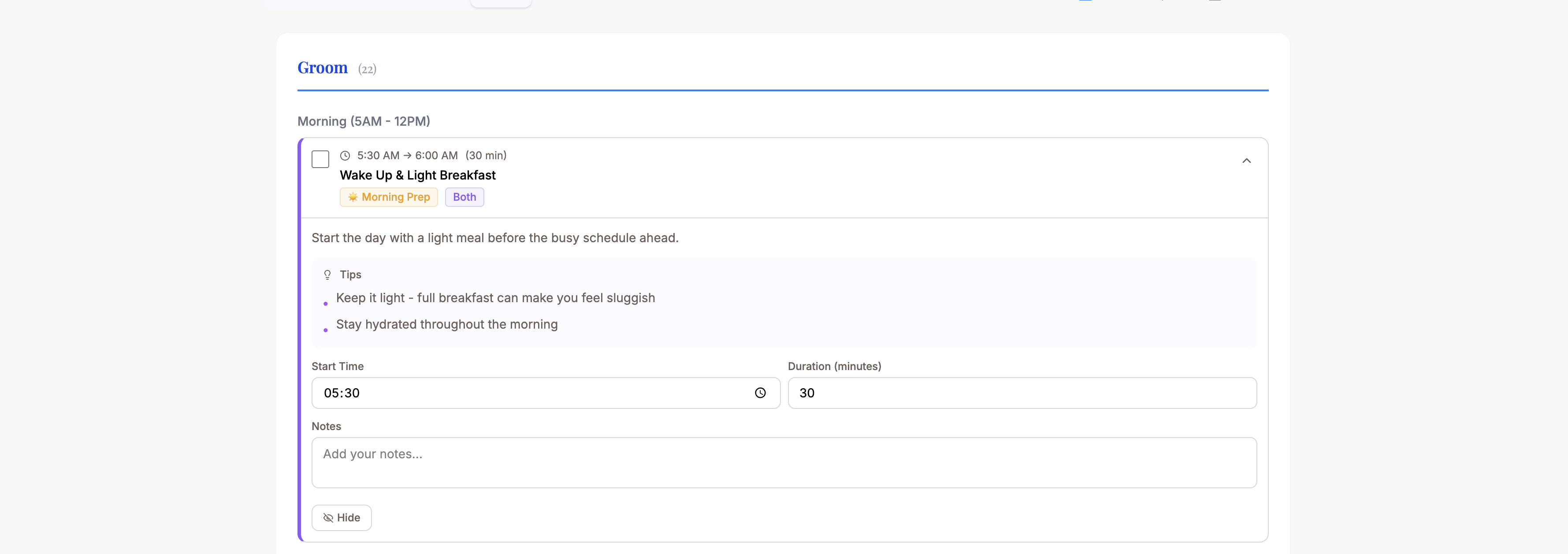
Click on any schedule item to expand it and see its details. From there you can:
- Edit the start time using the inline time picker
- Change the duration in 5-minute increments
- Update the title, description, or category
Managing Items
Each schedule item has quick actions:
- Complete — mark an item as done (useful on the wedding day itself)
- Hide — remove an item from view without deleting it
- Delete — permanently remove the item
Filtering Your Schedule
Use the filters at the top of the schedule to narrow what you see:
- Side filter — show items for All, Bride only, or Groom only
- Show completed — toggle visibility of completed items
- Show hidden — toggle visibility of hidden items
These filters work across all view modes, so you can combine them with any layout you prefer.
Tips
- Review the AI-generated schedule first before making changes — it covers the typical flow well.
- Use the Calendar View to catch any time overlaps between bride and groom schedules.
- Assign a coordinator or trusted friend to follow the schedule on the day.
- Hide items you do not need rather than deleting them, in case you change your mind later.