
Add Products to Your Registry
Browse the product catalog or add custom items to your wedding gift registry.
Last updated February 21, 2026
Two ways to add products
You can add products to your registry in two ways: browsing the curated catalog or adding a custom product manually.
Option 1: Browse the catalog
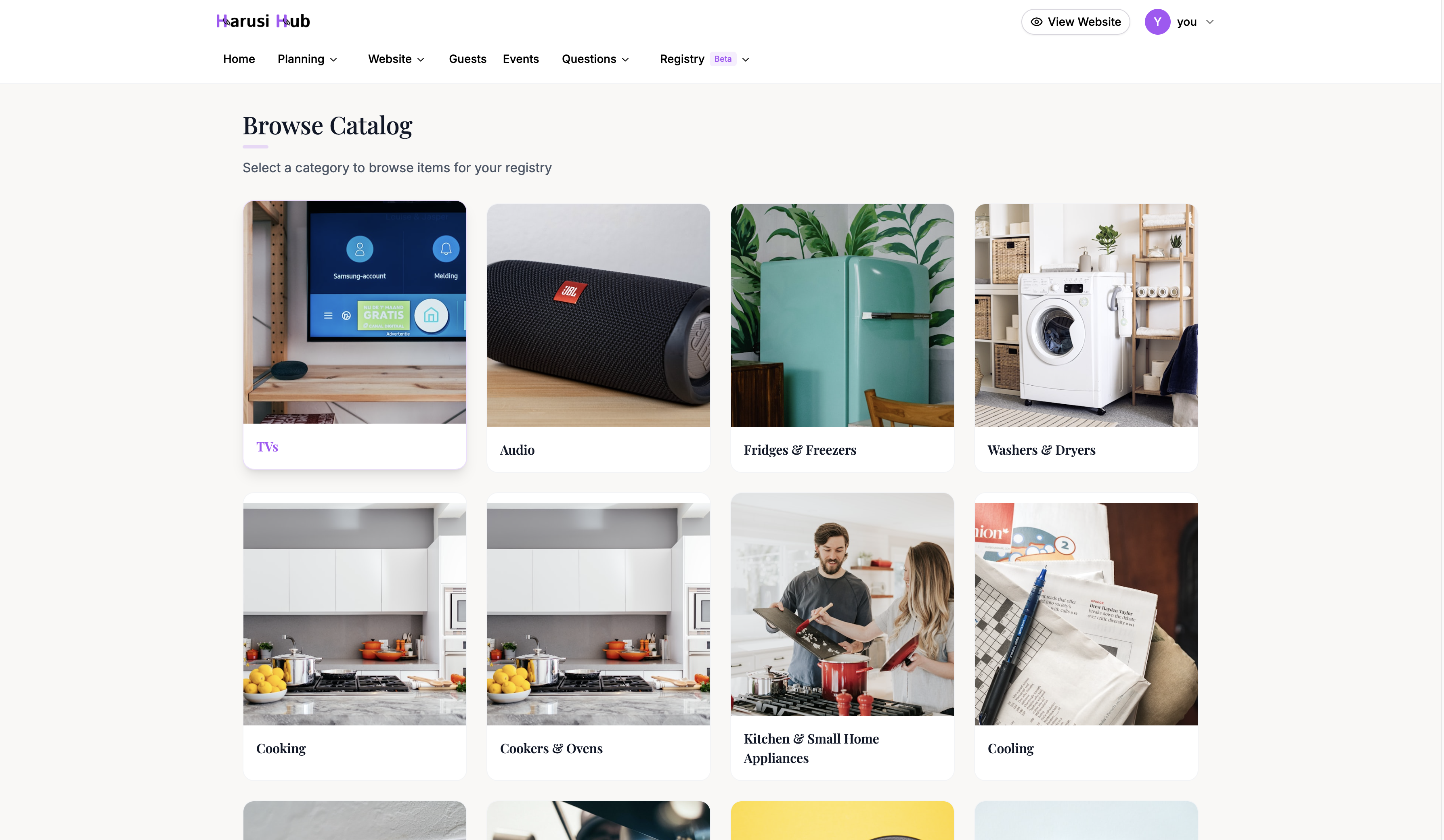
From Dashboard > Registry > Products, click Browse Catalog. You’ll see a curated selection of products from partner stores like Jumia, Kilimall, Hotpoint, Carrefour, and Naivas.
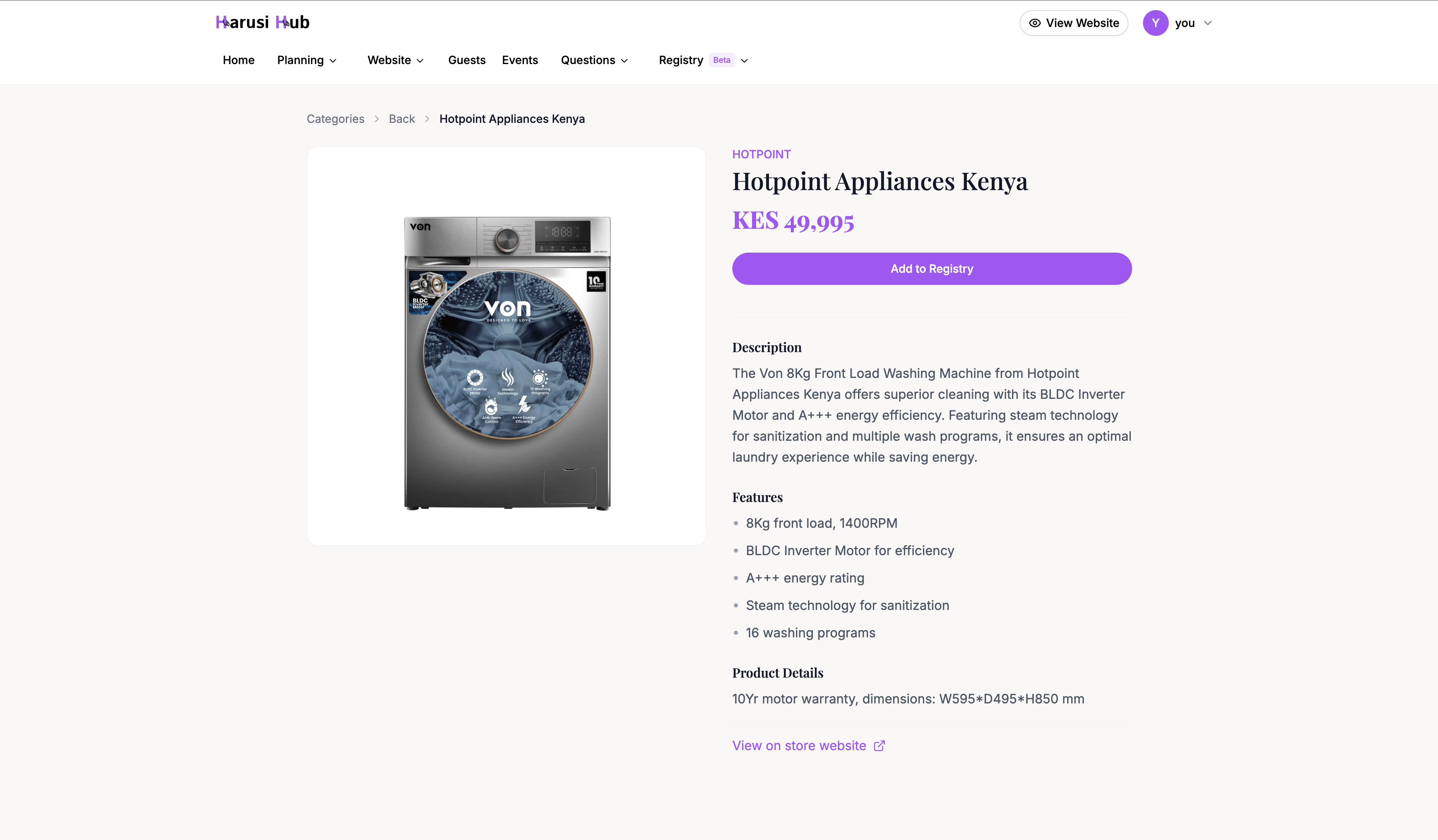
Products are organized by categories and subcategories (for example, Kitchen > Cookware). Click into a category to browse items, then click on a product to see its details.
To add a product, click the Add to Registry button on the product detail page. It’s added to your registry instantly.
Option 2: Add a custom product
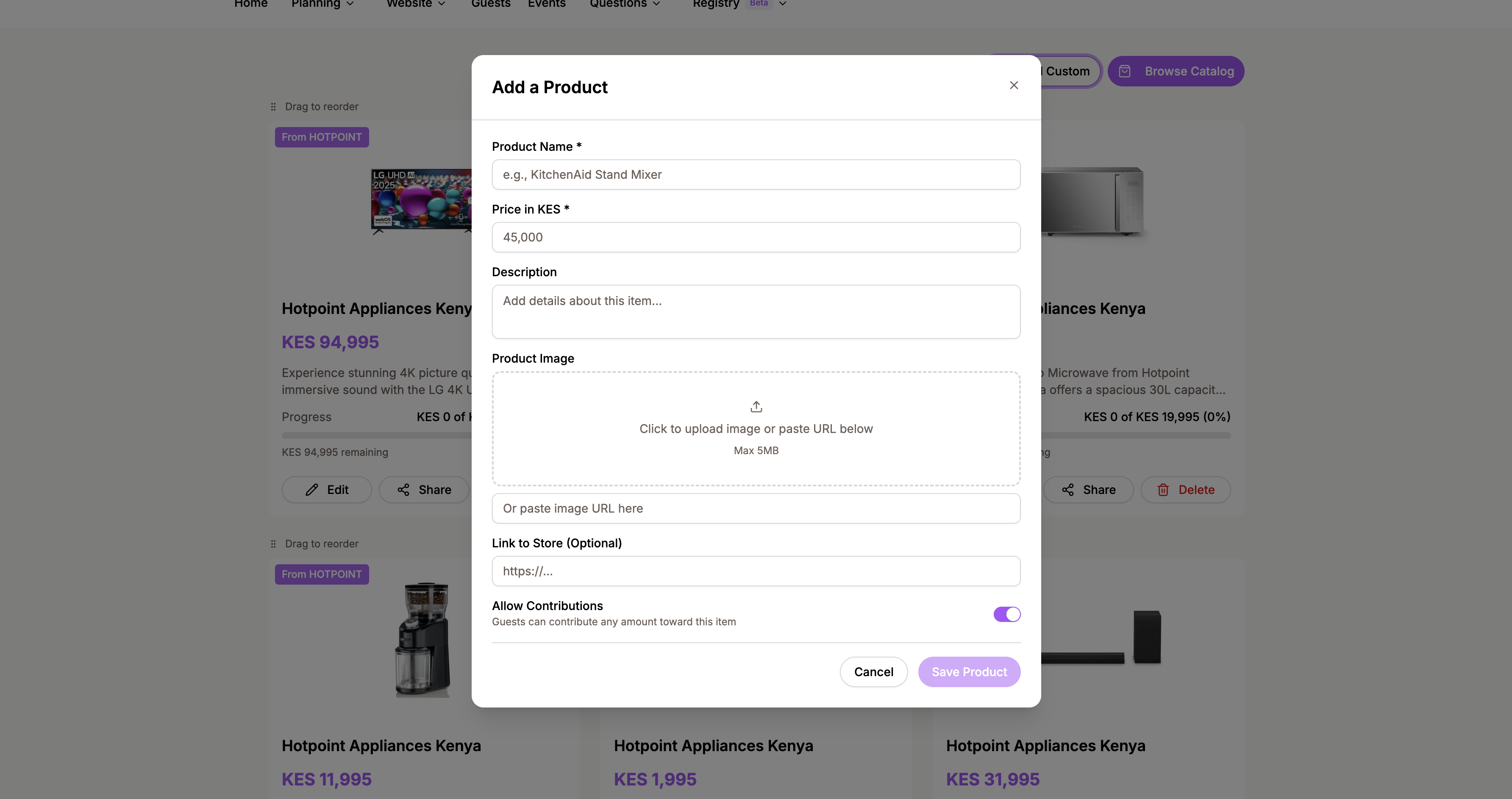
If you want something that isn’t in the catalog, click Add Custom from your products page. Fill in:
- Name — the product name.
- Description — a short description for guests.
- Price — the target amount.
- Image — upload a photo of the product.
- Source URL — a link to the product online (optional). The store name is auto-detected from the URL.
Click Save and the product appears on your registry.
Managing your products
Product list
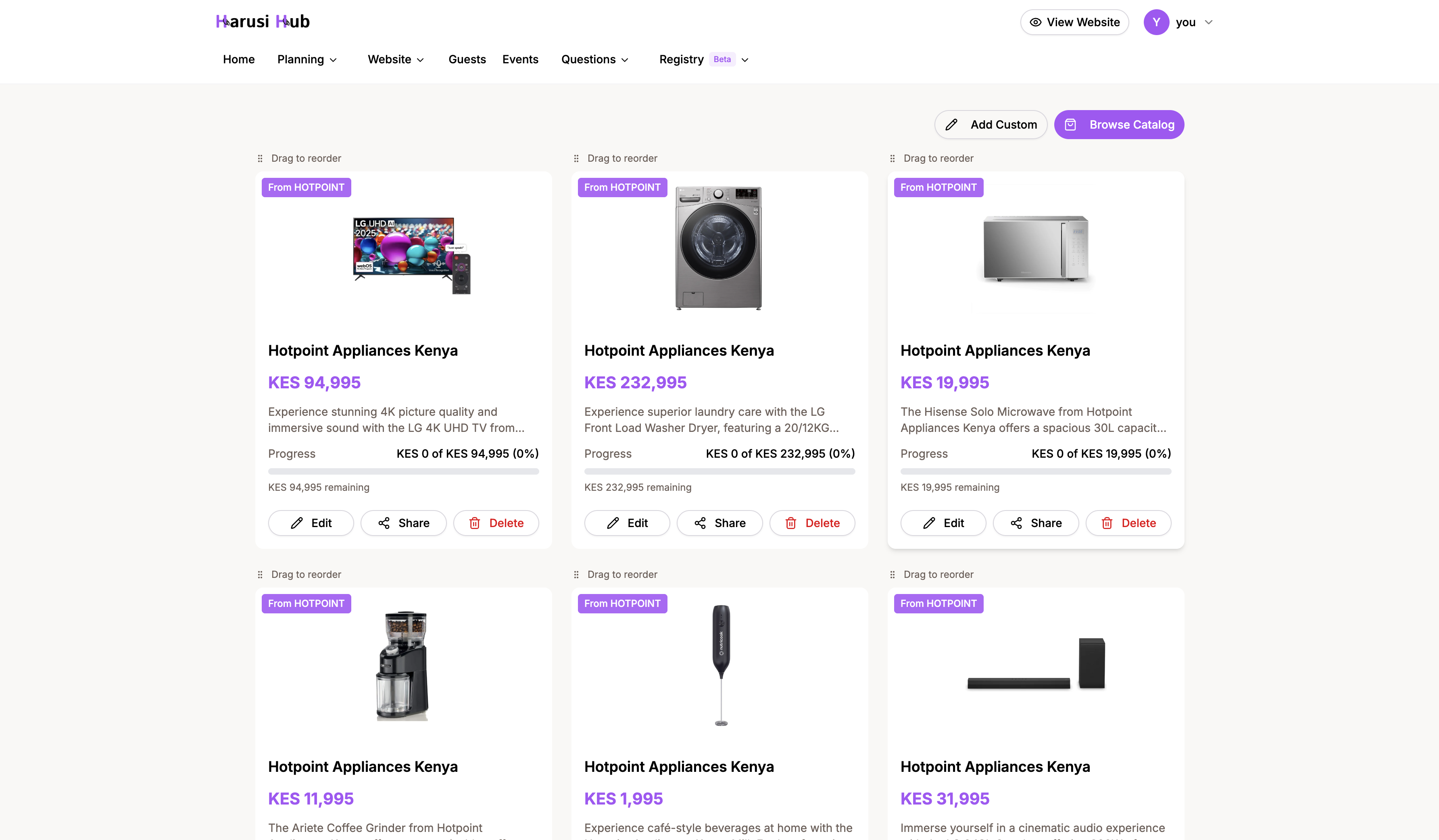
Your products appear in a card layout on the Products page. Each card shows:
- Product image and name.
- Contribution progress — the amount contributed so far, the remaining amount, the percentage complete, and the number of contributors.
- Status — available, fulfilled (target reached), or reserved.
Editing a product
Click on any product to edit its details. You can update the name, description, image, and source URL at any time.
Note: If guests have already contributed toward a product, you cannot change its price. This protects the accuracy of contribution tracking.
Deleting a product
You can delete a product from the product detail page. However, if the product has received any contributions, deletion is blocked to preserve contribution records.
Reordering products
Drag and drop products to reorder them. The order you set here is the order guests see on your public registry page.
Sharing a product with guests
Want to point a guest to a specific item? Click the Share button on any product card to copy a direct link. The link follows the format:
harusihub.com/{your-slug}/registry?itemId={product-id}When a guest opens this link, they land directly on that product on your registry page.

Next steps
- Set Up Your Gift Registry — overview of your registry hub and settings.
- Track Contributions — verify and manage guest contributions.